
Your HRIS portal comes pre-loaded with a variety of system-generated emails for user notifications. As an Administrator, you have the ability to edit these email templates to accommodate your company needs and match your company voice and brand.
Why Customize Email Templates?
Customizing email templates adds a personal touch to your employee interactions. Common examples we see of customized email templates include:
- Customizing Onboarding templates with additional company information or special welcome messages for new employees.
- Adding "Congratulations!" messages to Time Off Request Approval templates.
- Including reminders or internal instructions to W2_1099_ACA Loaded Admin Notice templates such as "Don't forget to release W-2s to employees by January 31!"
Step-By-Step Instructions
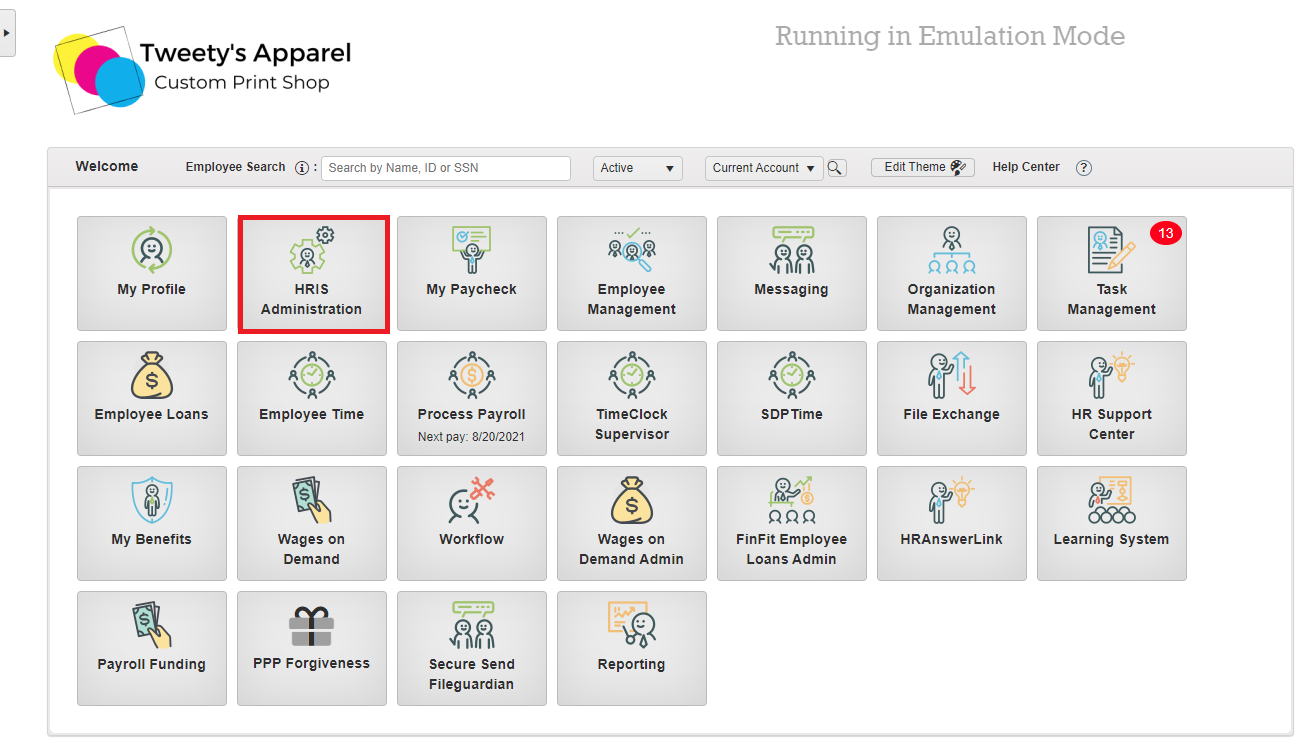
To view, edit, and test your system email templates, first launch the HRIS Administration module.
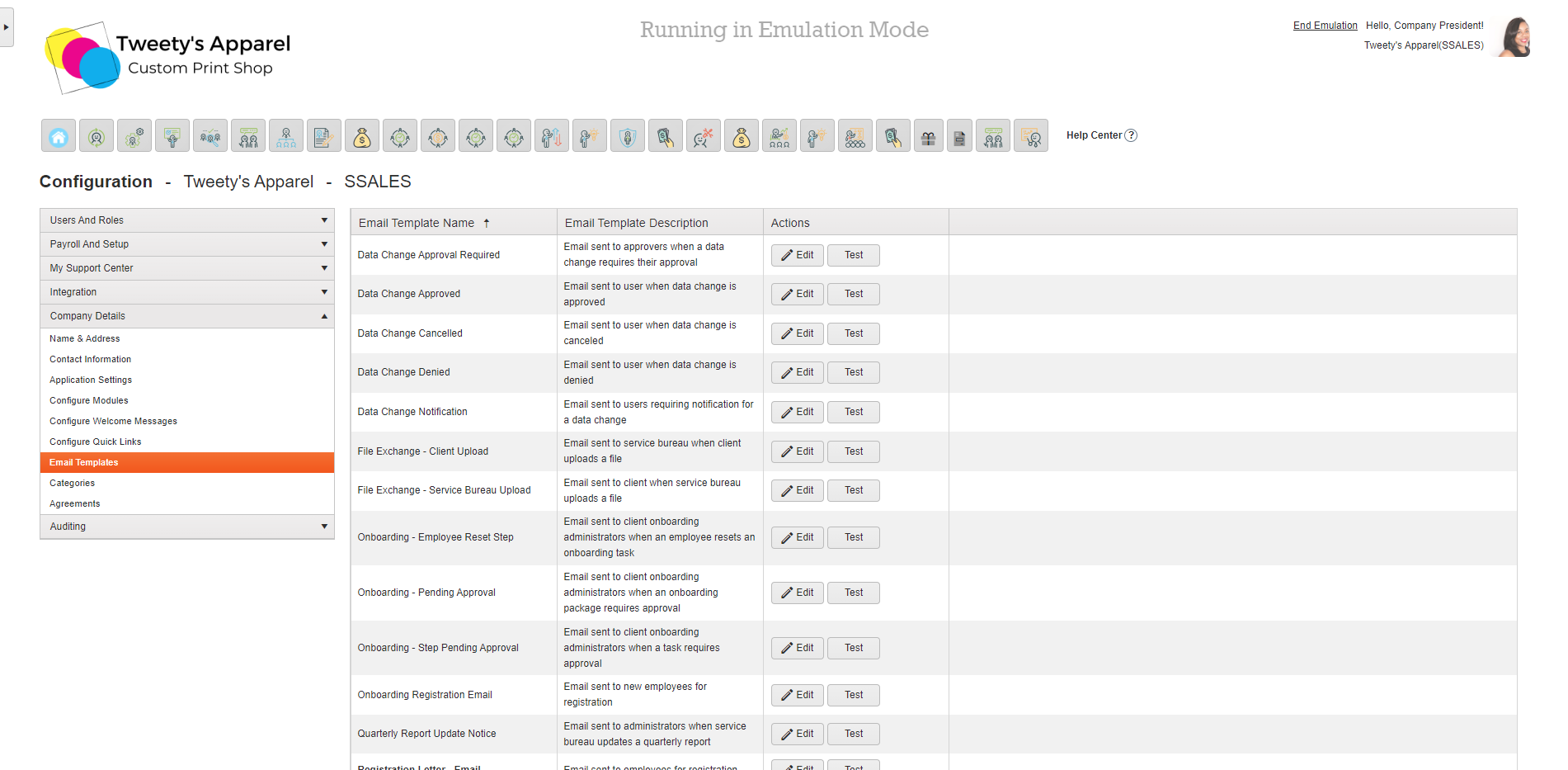
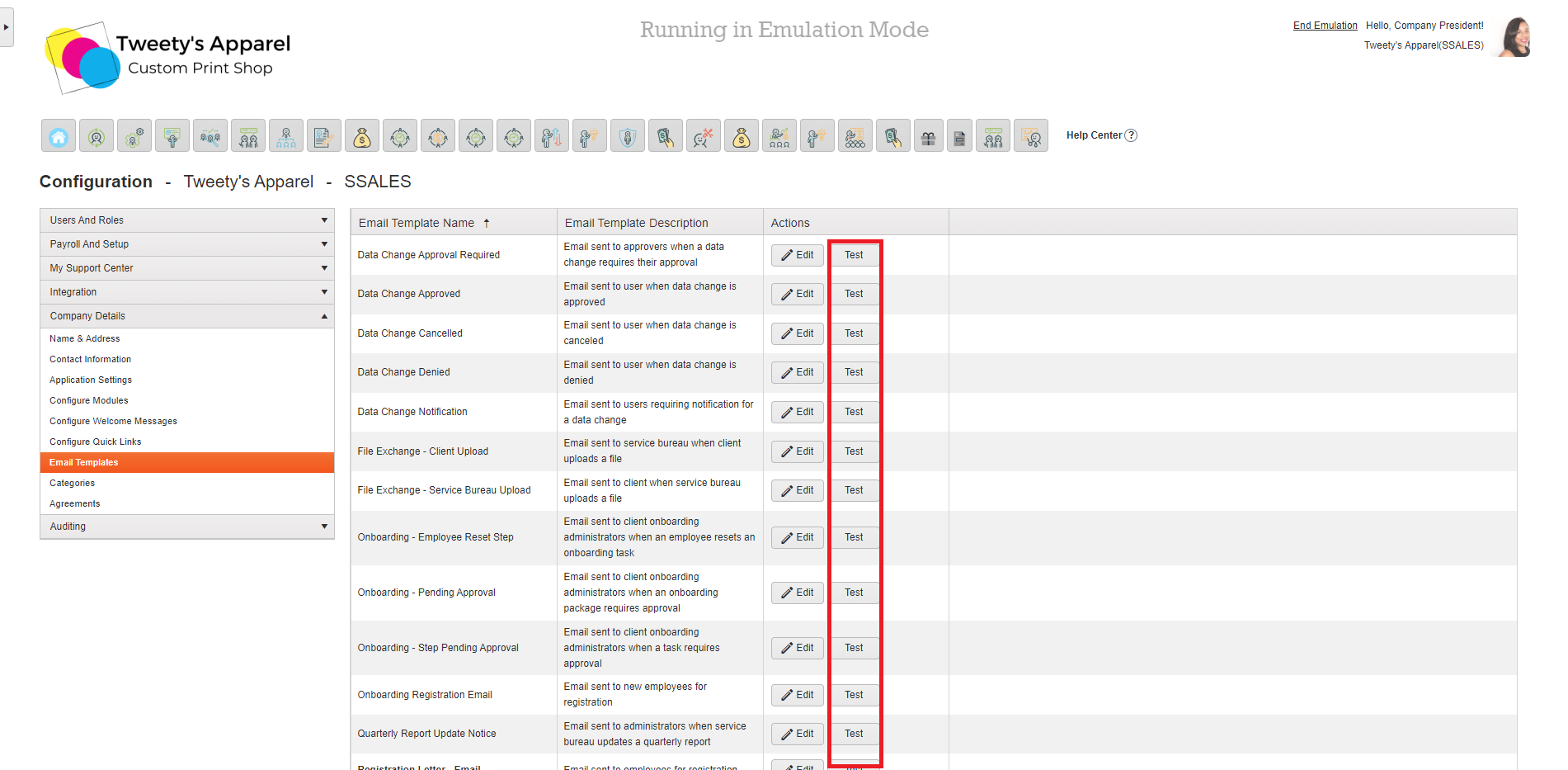
Then, select Email Templates from the Company Details tab on the left-side menu. This will bring up a list of your system email templates, and a description of when the template is sent out.
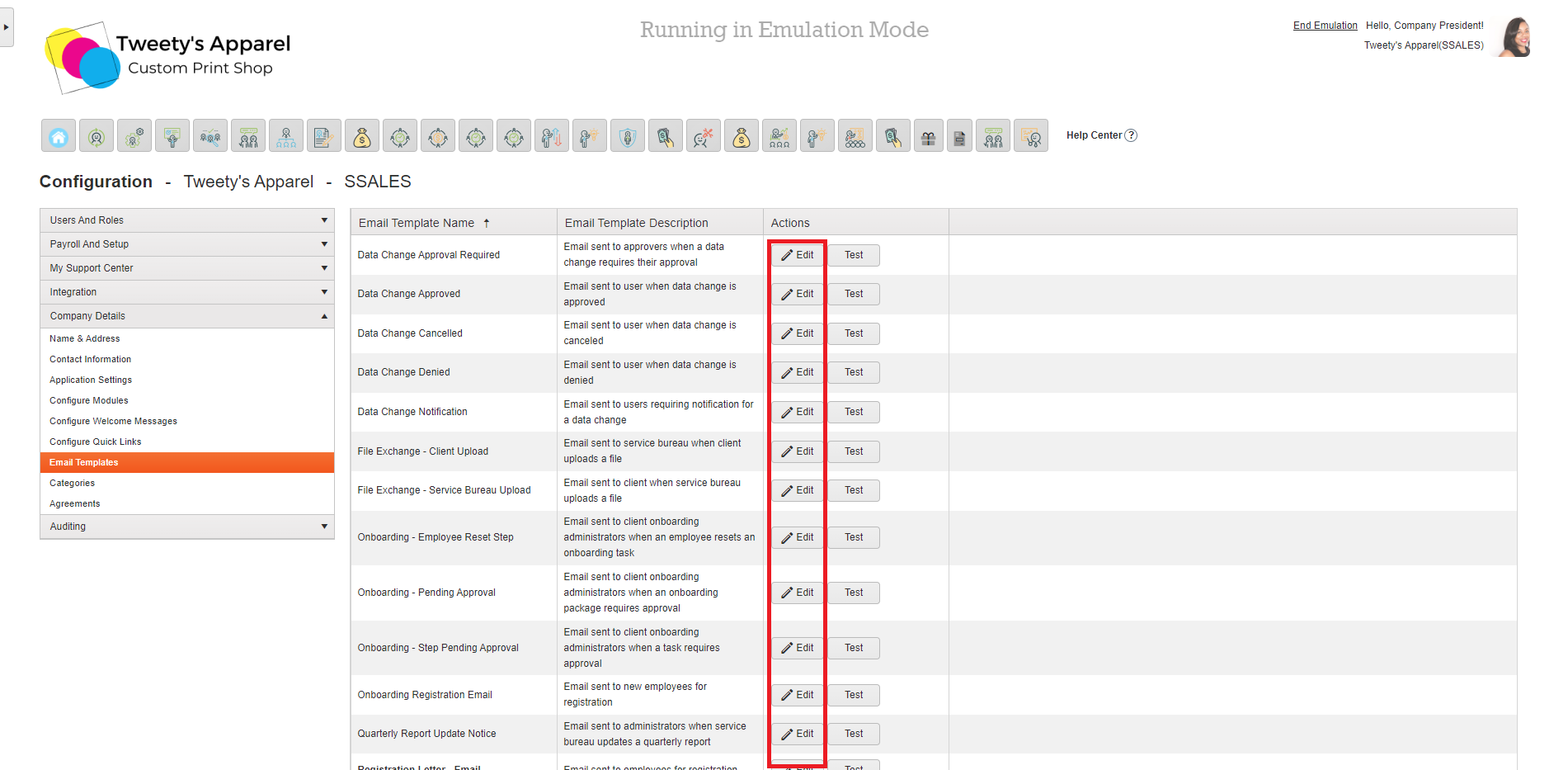
To view and edit a template, click Edit next to your selected template.
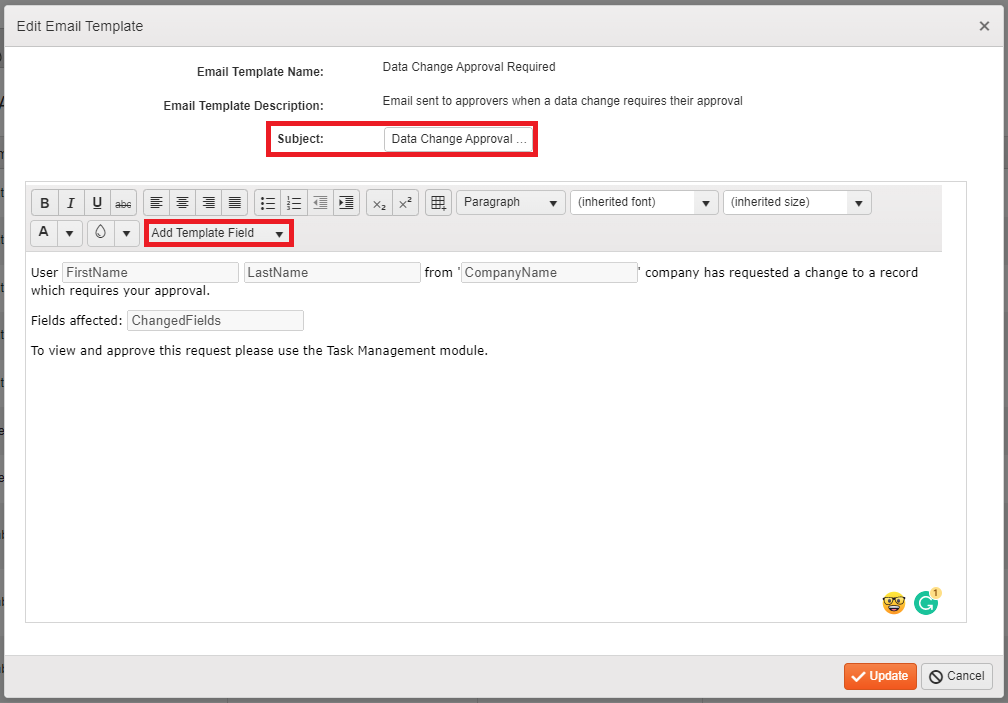
This will bring up a dialogue box for you to Edit the Email Template. You can edit the email Subject, add Template Fields (i.e. user first name, last name, company name, etc.), and edit your text. Once done, click Update.
Then, you can click Test to send yourself a test version of the system email.
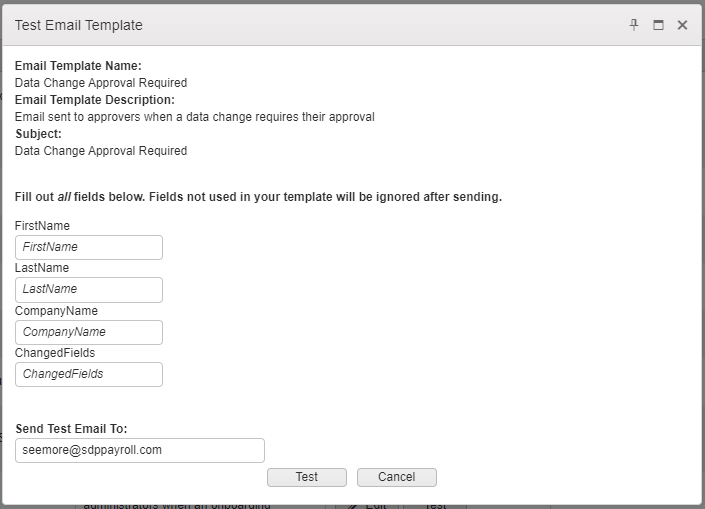
This will prompt you to enter the data for any Template Fields used for test purposes (in day-to-day operations, the system will pull whatever data is relevant to the email trigger when sending these emails). For example, for a Data Change Approval template, if a user changed their Address, the email would auto-populate with the user's name and that the Address field was changed.
Then, select the email address you would like to send the test email to and click Test.
Top Tip: Keep in mind that these emails may take a few minutes to land in your inbox!
Comments
0 comments
Please sign in to leave a comment.