
Before Submitting payroll it is imperative that a pre-process register is printed and/or saved and all verifications are checked. Once payroll is submitted, the information is processed immediately. Corrections, reversals, and adjustments made after submission will be subject to additional fees.
Begin Payroll Validations
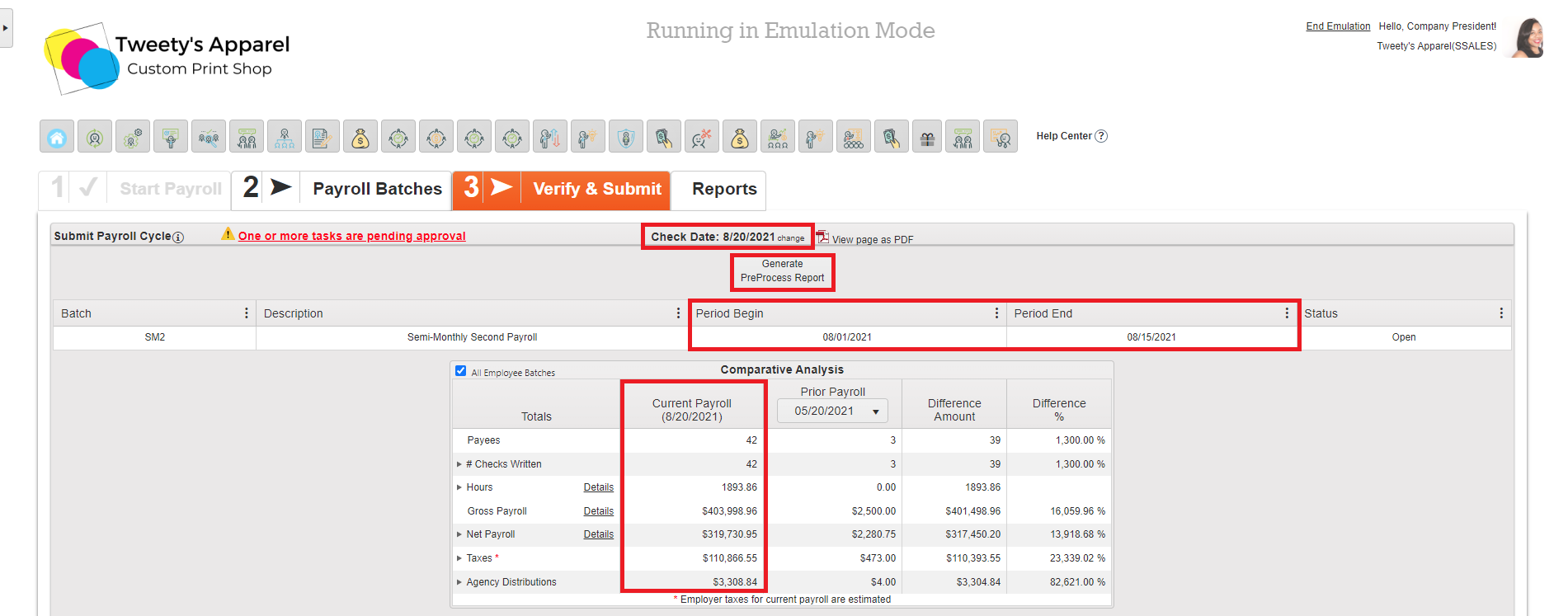
After payroll has been entered in Step 2, click Verify Payroll to move on to the next step. Once on the Step 3 Verify & Submit Screen, begin your payroll validations:
- Again, confirm the Check Date. Ensure that the check date is not in the past, is less than 10 business days in the future, and that you are processing in time to meet SDP's payroll deadline of 2 business days before check date by 2 PM PT.
- Again, confirm the Pay Period.
- Ensure that any pop-up blockers are disabled, then click to Generate PreProcess Report and review this file. (Pop-up blockers will prevent this from downloading.)
- Optional: If you would like to print the Validations screen for your records, you can do so by clicking View Page as PDF.
Top Tip: Do not skip checking your Pre-Process Report! While the other validations in this section are helpful, the Pre-Process Report will show you exactly what is being processed and should always be reviewed for accuracy prior to submitting payroll.
Comparative Analysis
Review the Comparative Analysis for:
- Number of employees being paid
- Number of checks written (expand this to view by check type)
- Total hours (expand this to view by type or click Details to view by employee)
- Gross Payroll Amount (click Details to view by employee)
- Net Payroll Amount (expand to view physical Checks vs. Direct Deposit or click Details to view by employee)
- Taxes (expand to view Employee vs. Employer taxes)
- Agency Distributions (expand to view breakdown by agency)
Top Tip: In addition to checking totals for this payroll, use the Prior Payroll comparison to compare your numbers to previous payrolls. This can be helpful in identifying large discrepancies.
Validation
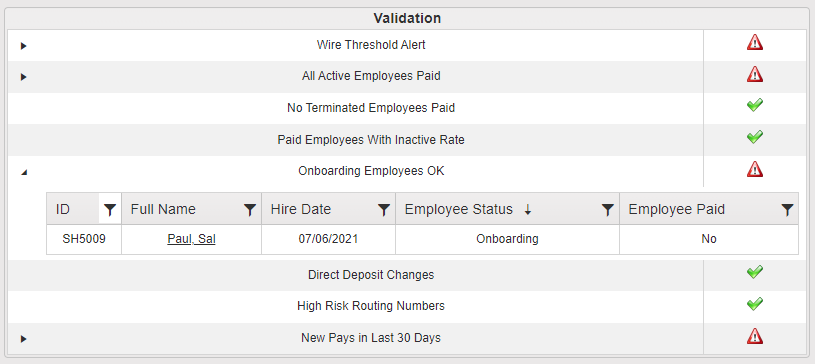
Next, the Validation table will include several system validations to ensure:
- You are aware if you meet our Mandatory Wire Requirements
- All active employees are paid
- No terminated employees are paid
- No employees are paid with an inactive rate
- Employees going through Onboarding are being paid
- Any direct deposit changes are approved
- Any high-risk routing numbers for direct deposit changes are brought to your attention
- You are aware of any newly paid employees from the past 30 days
If you see any Alert icons (instead of Green Checks), be sure to review these prior to processing payroll by clicking the Arrow icon to expand the Validation notice.
Itemized Earnings & Deductions
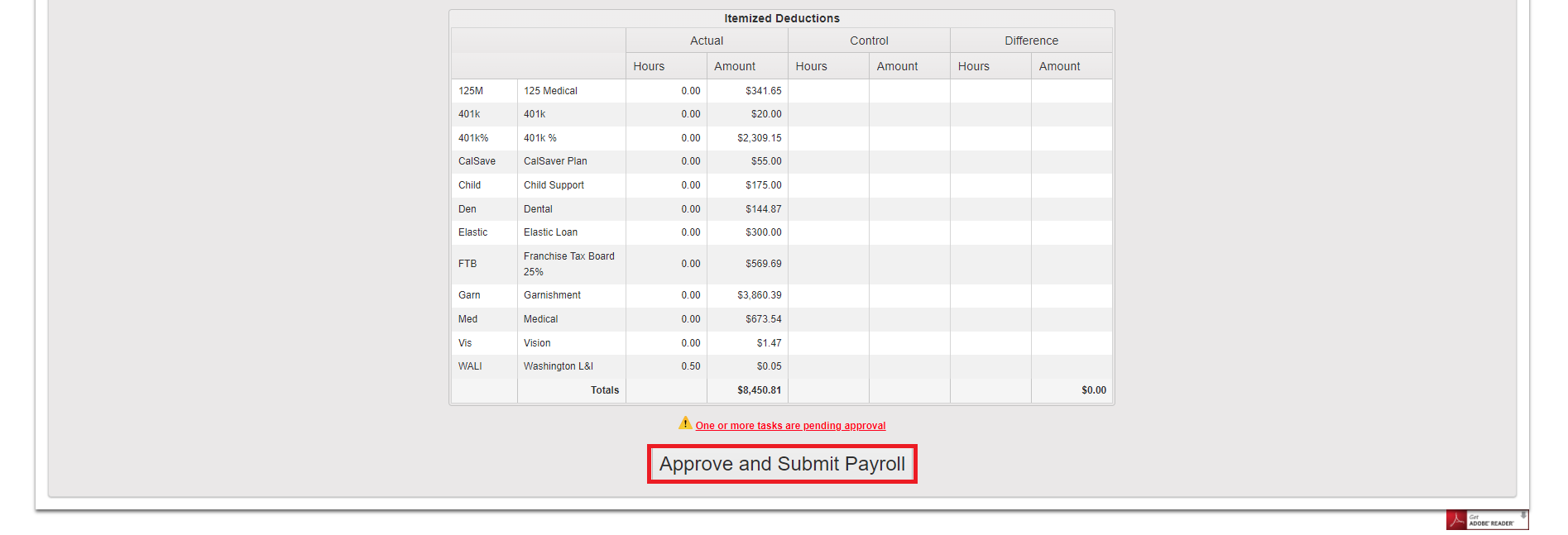
After this, the last two tables are Itemized Earnings and Itemized Deductions. Here, you can view totals for each earning and deduction code. For more information, you can click on the Earning or Deduction code to view all employees who were paid with the specific code.
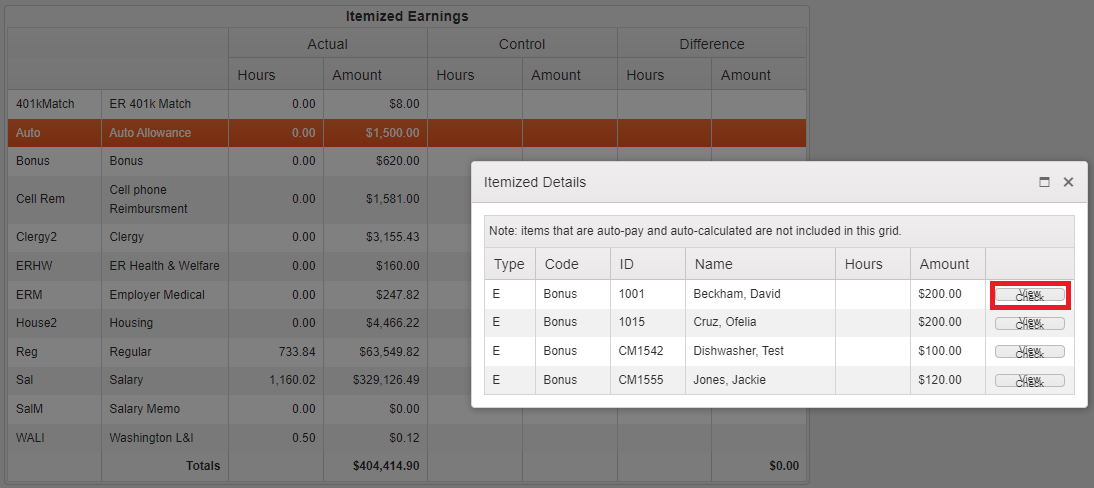
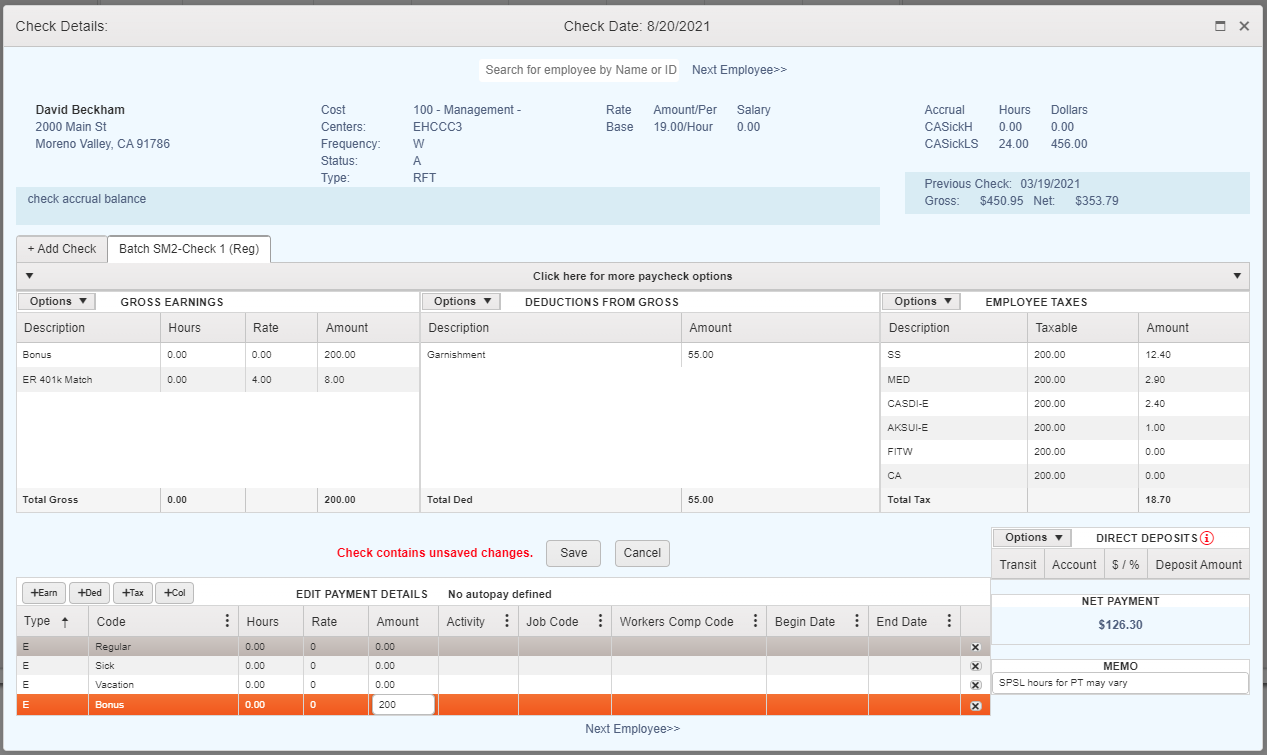
Clicking View Check will allow you to open the employee's check and make any edits if needed.
Approve & Submit
Finally, after reviewing your Pre-Process Report and completing all Payroll Validation Checks, if the payroll is ready to process, click Approve and Submit Payroll to submit.
Important: This step is final and cannot be reversed. If any errors were made in the payroll batch(es) that have already been submitted, the client will incur fees associated with correcting the errors.
A confirmation screen will appear once your payroll has been successfully submitted.
Comments
0 comments
Please sign in to leave a comment.