
Once you start payroll, you will be taken to Step 2 of processing payroll, Payroll Batches. A payroll batch is a way to mark the records you want to pay and can be used to group work and totals.
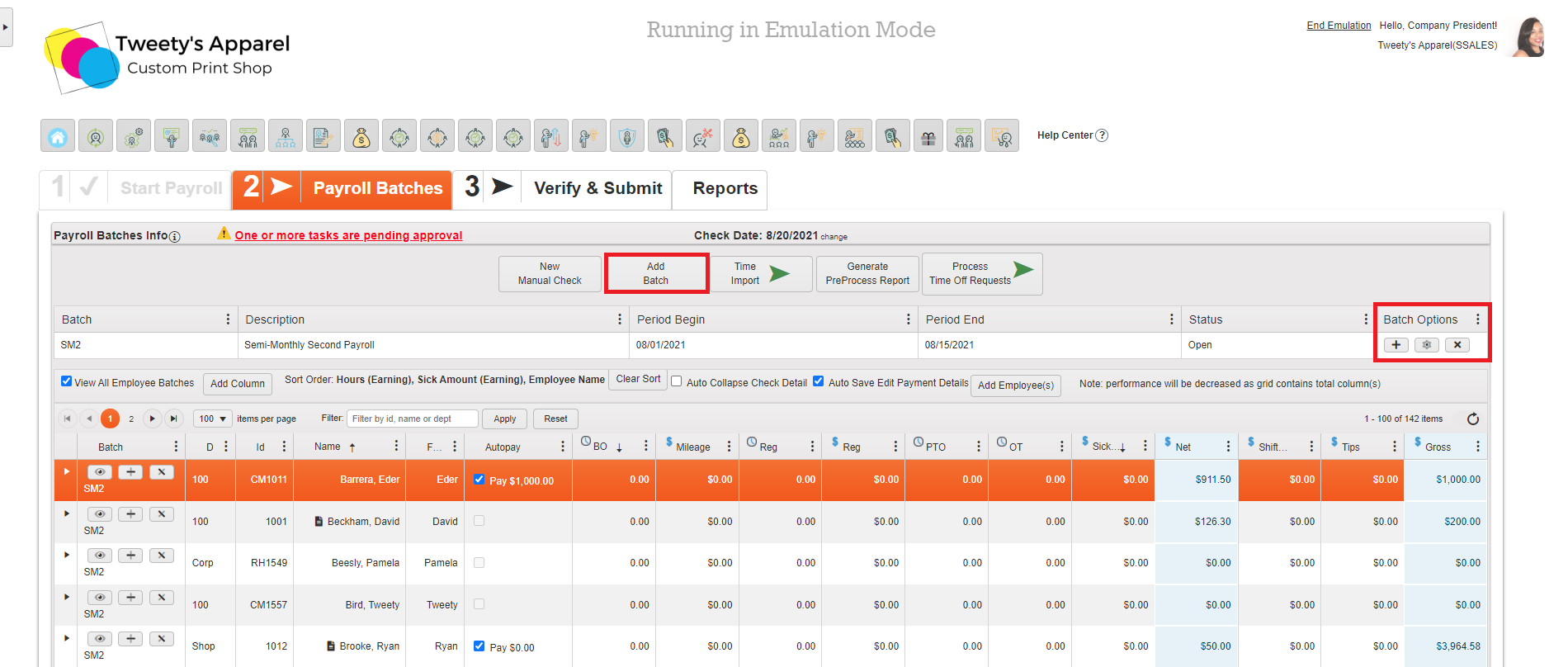
From your Pay Grid, there are several actions available to help you navigate and customize your pay grid and batch(es) to streamline your payroll entry.
- Employee Check Options: Adding, removing, and viewing employee checks
- Viewing employee accruals and payroll notes
- Adding employees to your batch
- Adding, removing, sorting, and filtering columns
- Batch Options: Adding, restarting, and deleting payroll batches
Employee Check Options
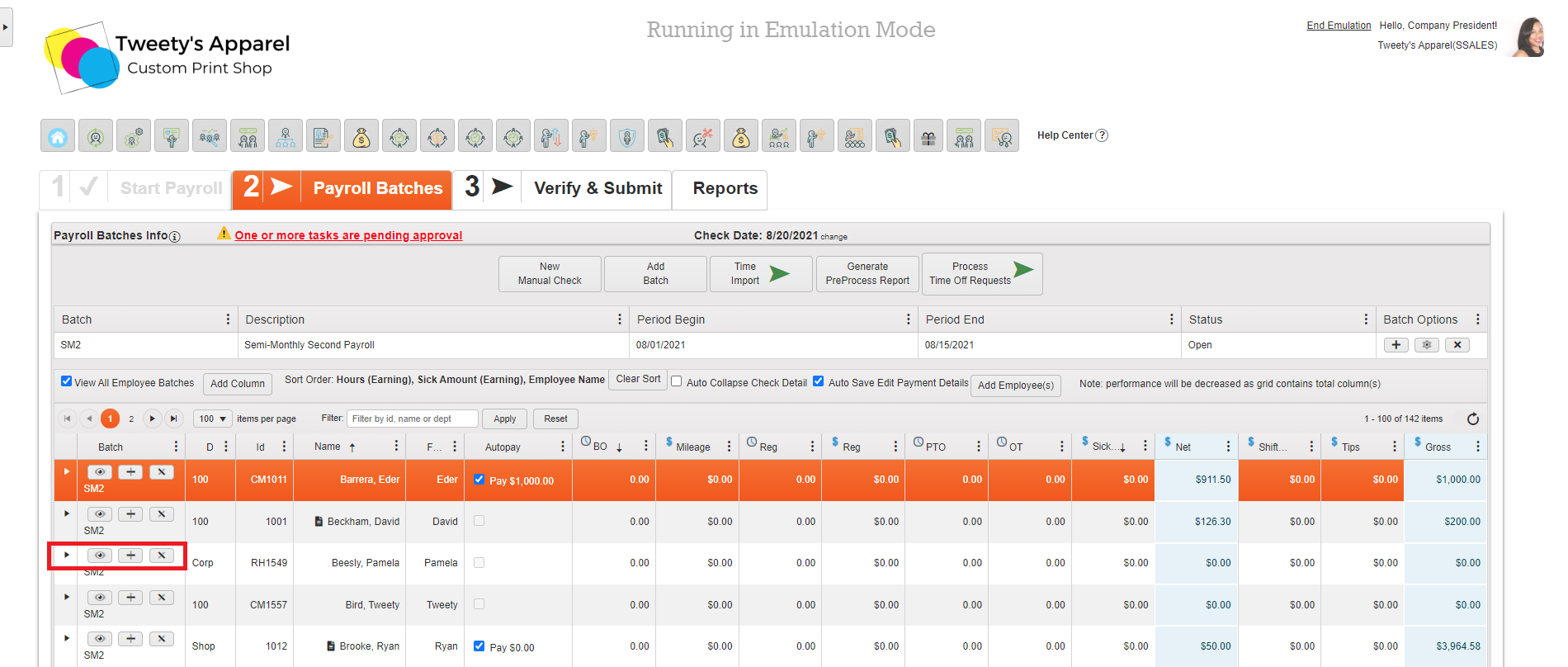
Next to each employee on your pay grid, you will see several Batch Icons:
- Arrow: Will unhide a drop-down of the employee's payment details.
- Eye: Will open a pop-up of the employee's payment details. This will also have the option to click to the Next Employee.
- Plus (+): Add a check. This will create an additional check for the employee. For example, if you would like to issue a separate Bonus check.
- X: Delete a check. This will delete the selected check from your payroll batch.
Viewing Employee Accruals & Payroll Notes
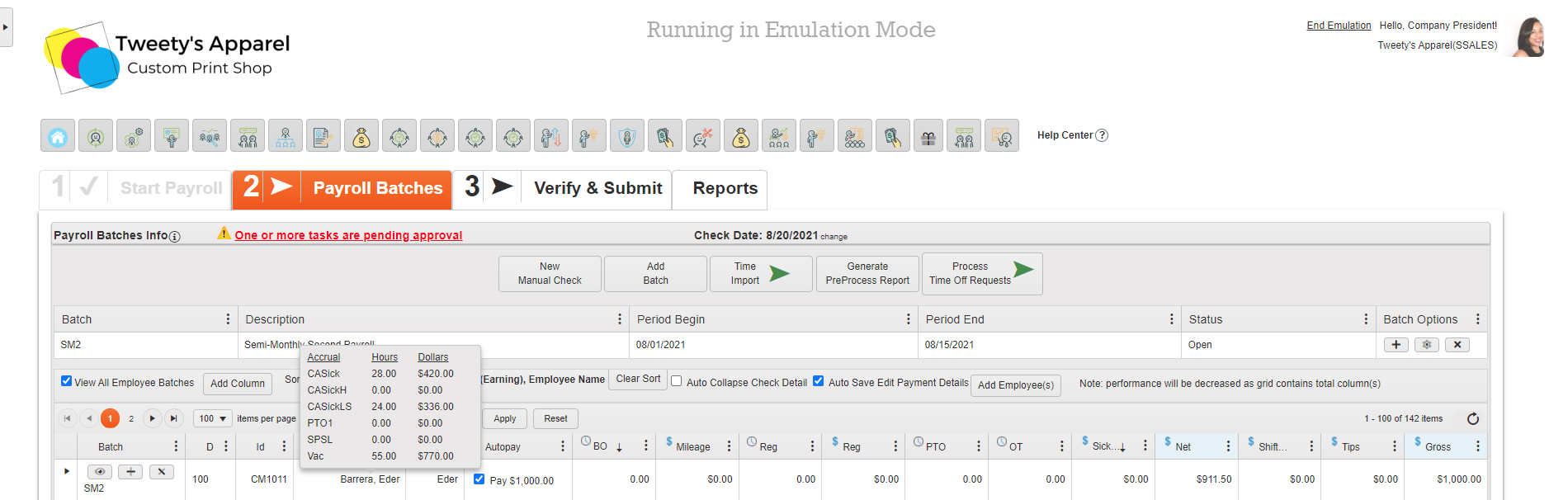
You can hover over any employee's name to view their accrual balances. This is particularly helpful if entering PTO and Sick hours, to ensure an employee has adequate time off available before issuing them the requested hours in payroll.
Additionally, if you have set up any Payroll Notes for an employee, the employee will have a Note icon next to their name. You can hover over this icon to view the payroll note.
Add Employees To Batch
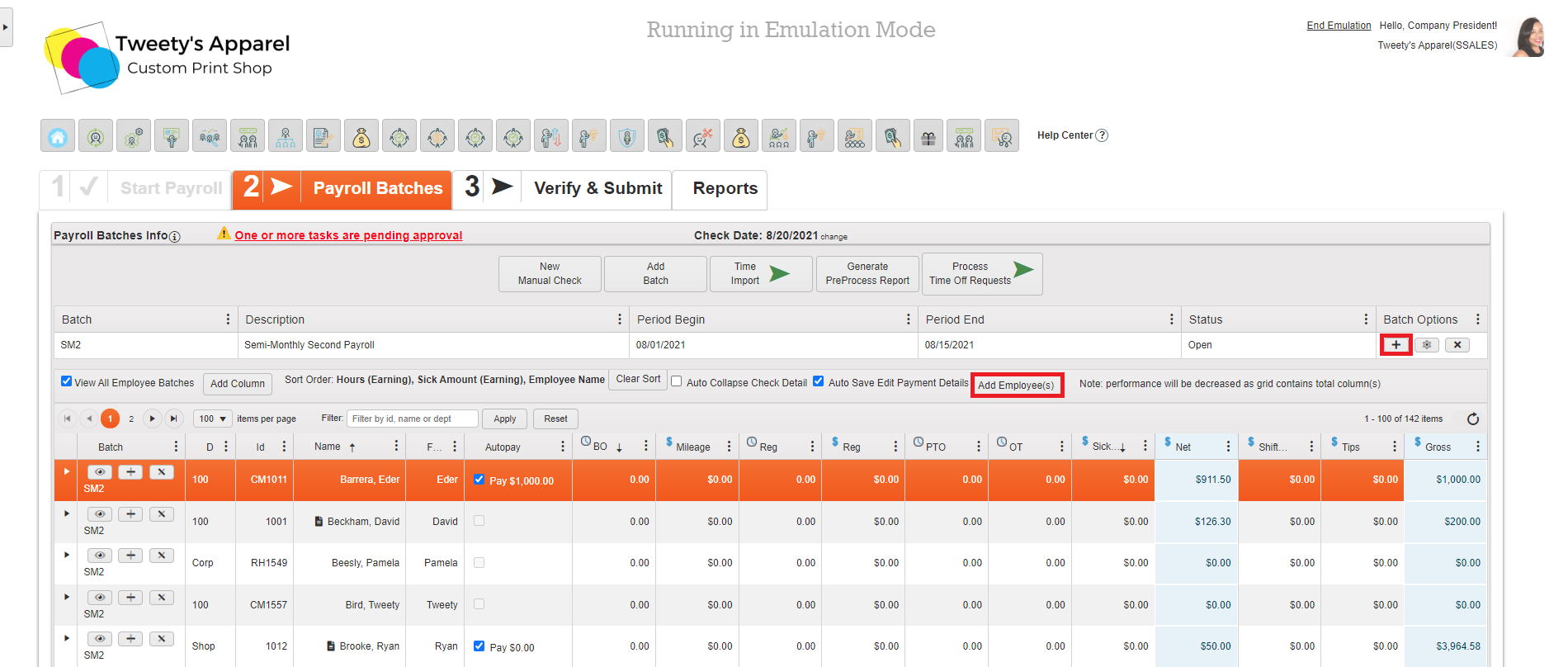
If any employees are missing from your batch (for example, if a new hire was added after payroll was already started), you can add them by clicking either Add Employee(s) or the Plus (+) button under Batch Options under your Payroll Patch Info.
Adding, Removing, Sorting, and Filtering Columns
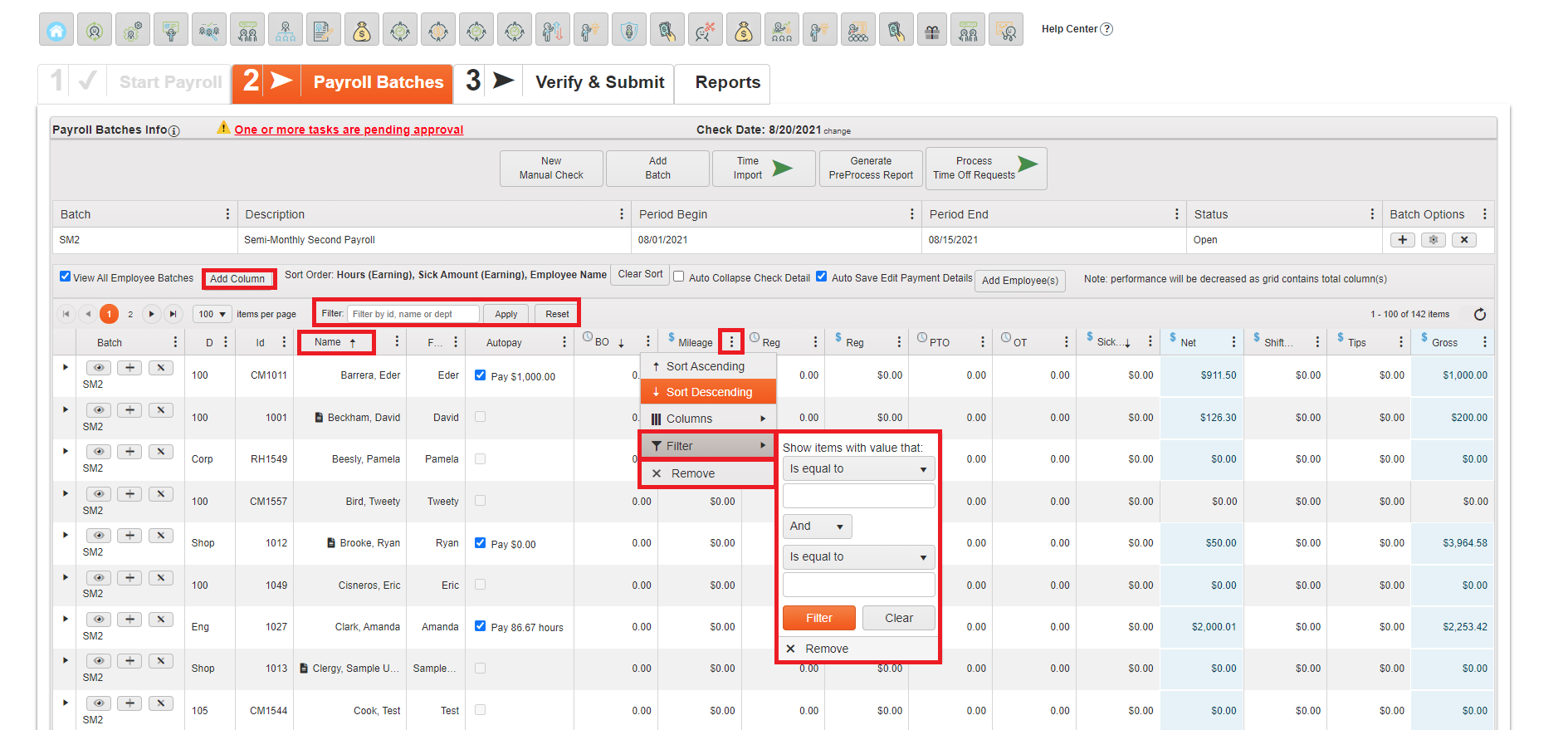
If you would like to add/remove any columns or sort your employee list by a specific column, you can do so by:
- Add Column: Pressing the Add Column button
- Remove Column: Clicking the Three Dots on a column header and selecting X Remove
- Sorting & Filtering: Click on a column header to sort by that column ascending/descending. For more advanced sorting and filtering, select the Three Dots on a column header and click Filter, or use the Filter bar above your employee list
Batch Options
Finally, if you need to make any changes to your batch(es), you can do so using the Batch Options icons:
- Add Batch: Add a new batch to this payroll. For example, if you wanted to create a separate batch for Bonus checks.
- Plus (+): Add employees to the selected batch.
- Gear: Restart your batch. This will delete all paychecks in the selected batch and restart the batch with blank checks. Note that this is final and cannot be reversed.
- X: Delete batch. This will delete the batch and all of its checks. Note that once deleted, you cannot restart the batch. You would need to recreate the batch by hand, entering each individual check manually.
Comments
0 comments
Please sign in to leave a comment.