
Entering payroll via Time Import is one of the fastest and most efficient ways to process payroll, especially if you have a large number of hourly employees. In order to import your timekeeping information into payroll, you must either:
- Be utilizing our integrated timekeeping service, or
- Have set up a custom time import mapping.
Timekeeping Service Imports
If you are utilizing our integrated timekeeping service, you must first Finalize Your Pay Period in timekeeping before you can import hours.
Finalize Your Pay Period
To do so, launch the TimeClock Supervisor module in your HRIS Portal.
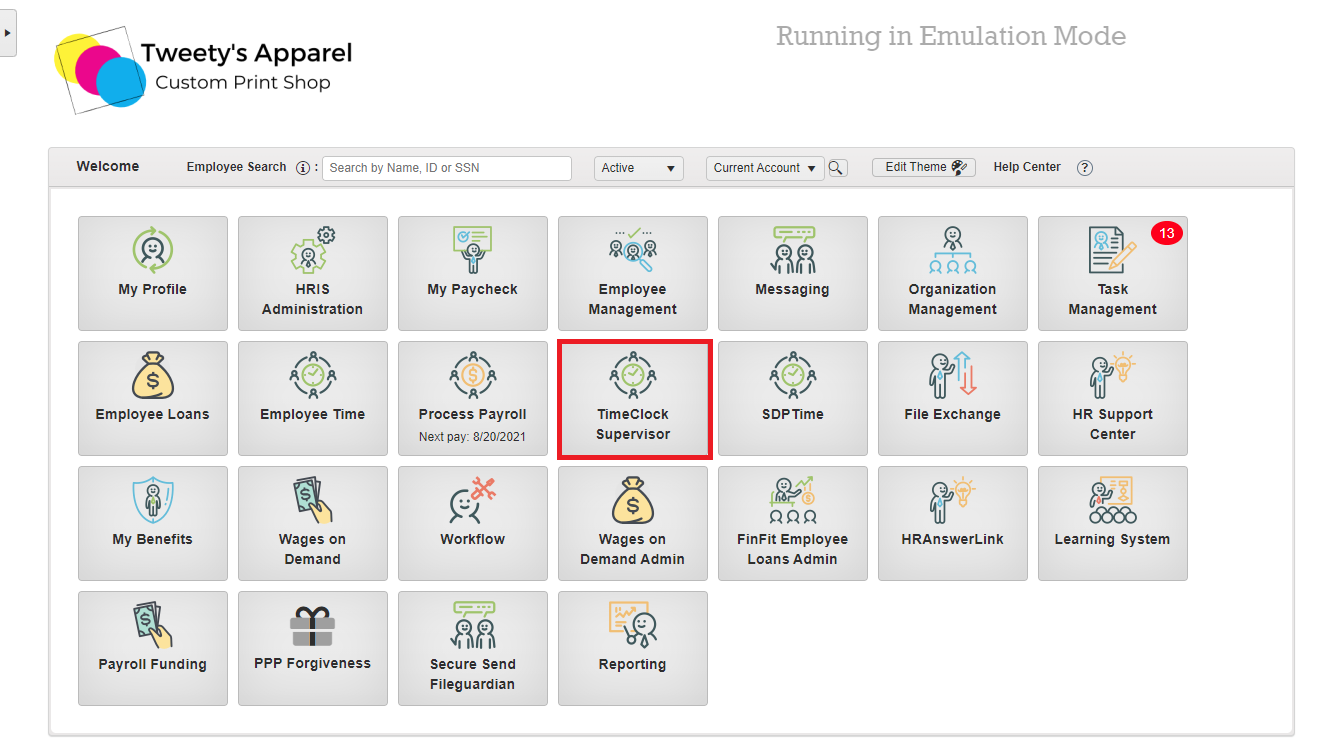
From here, click on the Maintenance Menu and select Finalize Pay Period.
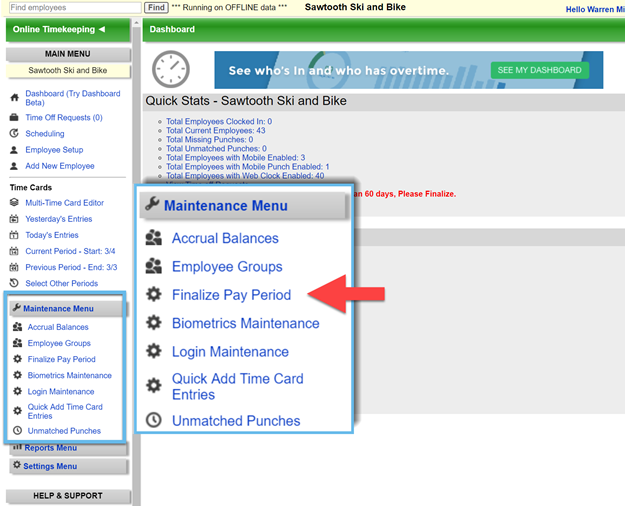
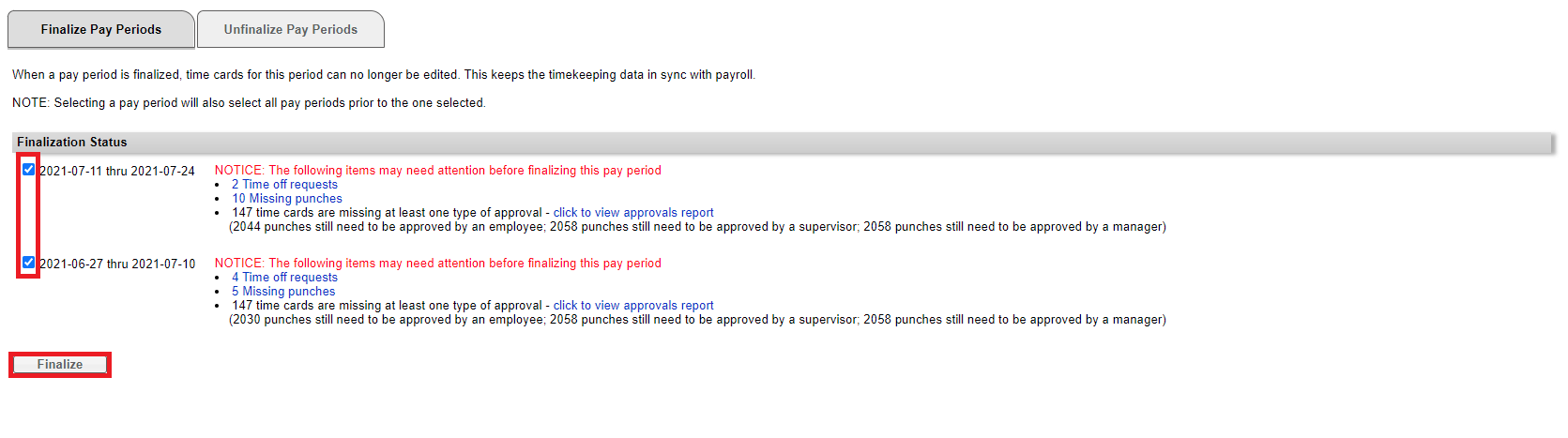
Any unfinalized pay periods will be listed here with a summary of any pending time card issues. These include missing punches and unapproved time cards.
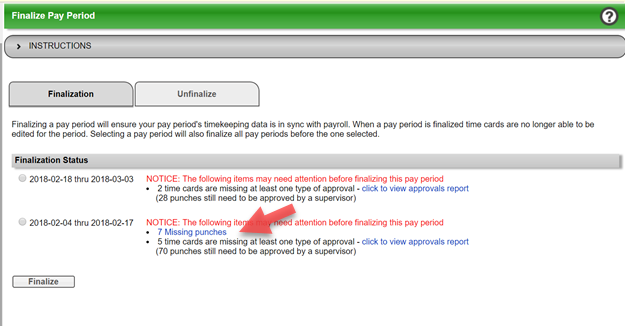
Neither missing punches nor unapproved time cards will prevent you from finalizing, but in the case of missing punches, it is strongly recommended you address them before proceeding.
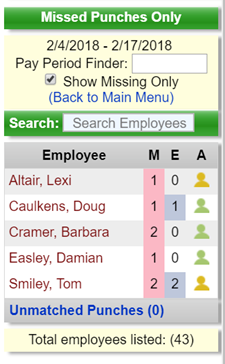
Missing Punches: If you click on the "Missing Punches" link, the Clock Activity pane will appear on the left with a list of employees missing punches.
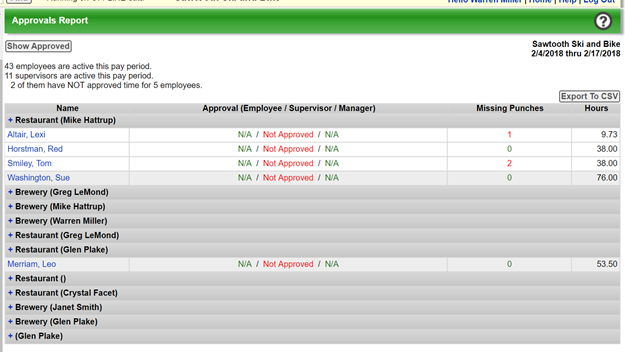
Unapproved Time Cards: If you click the "Approvals Report" link, you will see a list of employees with unapproved time cards and the managers responsible for those employees.
Once you are satisfied that all of your time card data is accurate, choose a pay period with the radio buttons and click Finalize.
Top Tip: If you select the most recent completed pay period, the system will also select any unfinalized pay periods preceding it.
Import Hours From Timekeeping
Once you have finalized your pay period, launch the Process Payroll module from your HRIS portal.
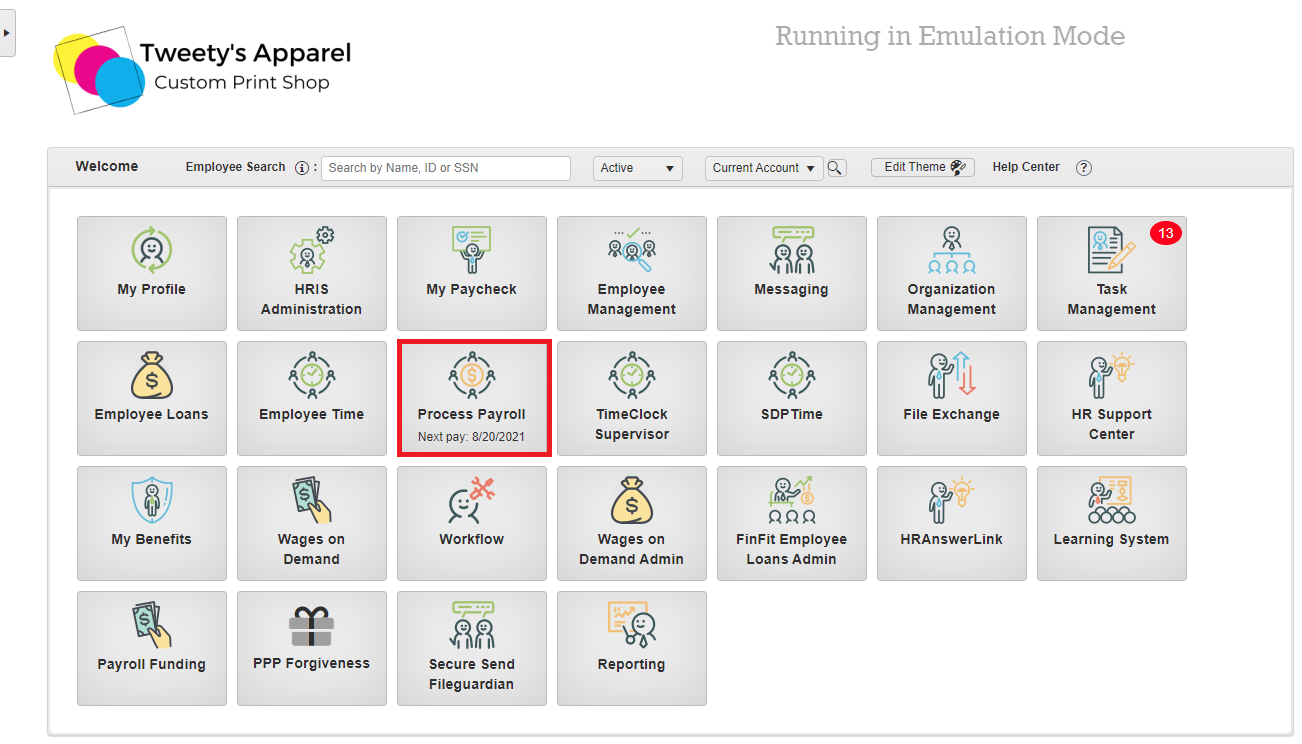
This will open Step 1, Start Payroll. Verify your Check Date and Period Begin & Period End dates, then click Start Payroll.
Top Tip: If you need to make any changes to this information, you can learn how to do so here!
Then, select Time Import at the top of your Payroll Batches screen.
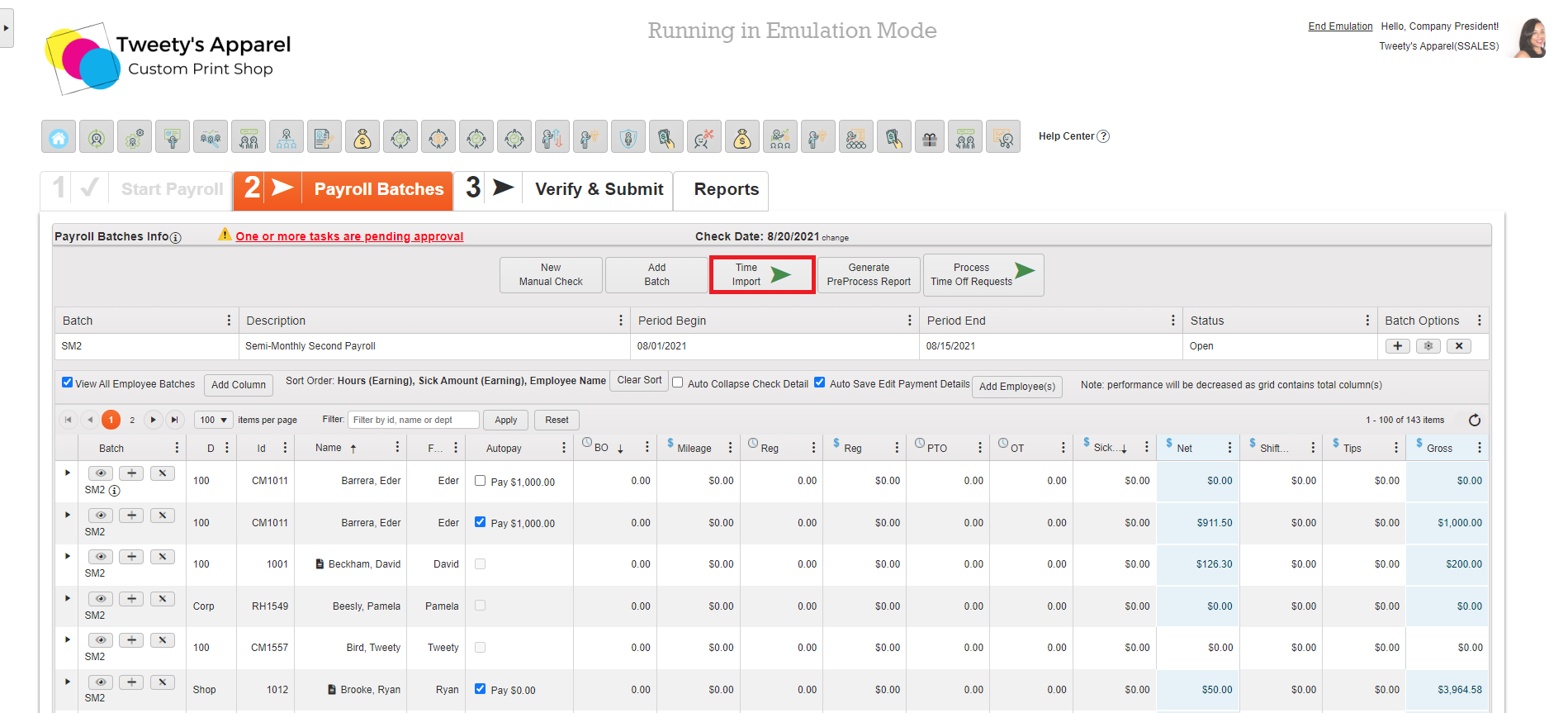
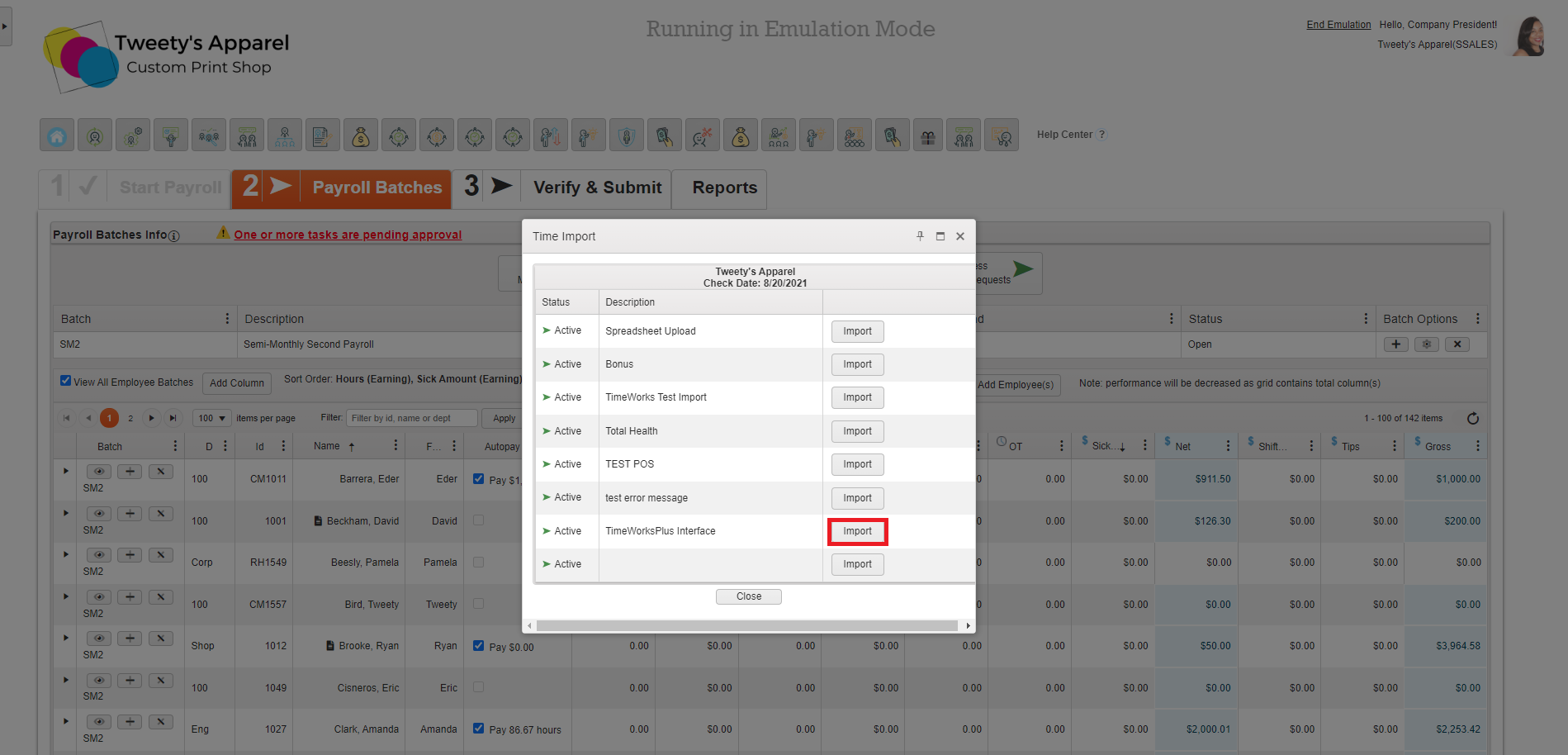
Click the Import button next to TimeWorksPlus Interface and the system will begin automatically retrieving your timekeeping data.
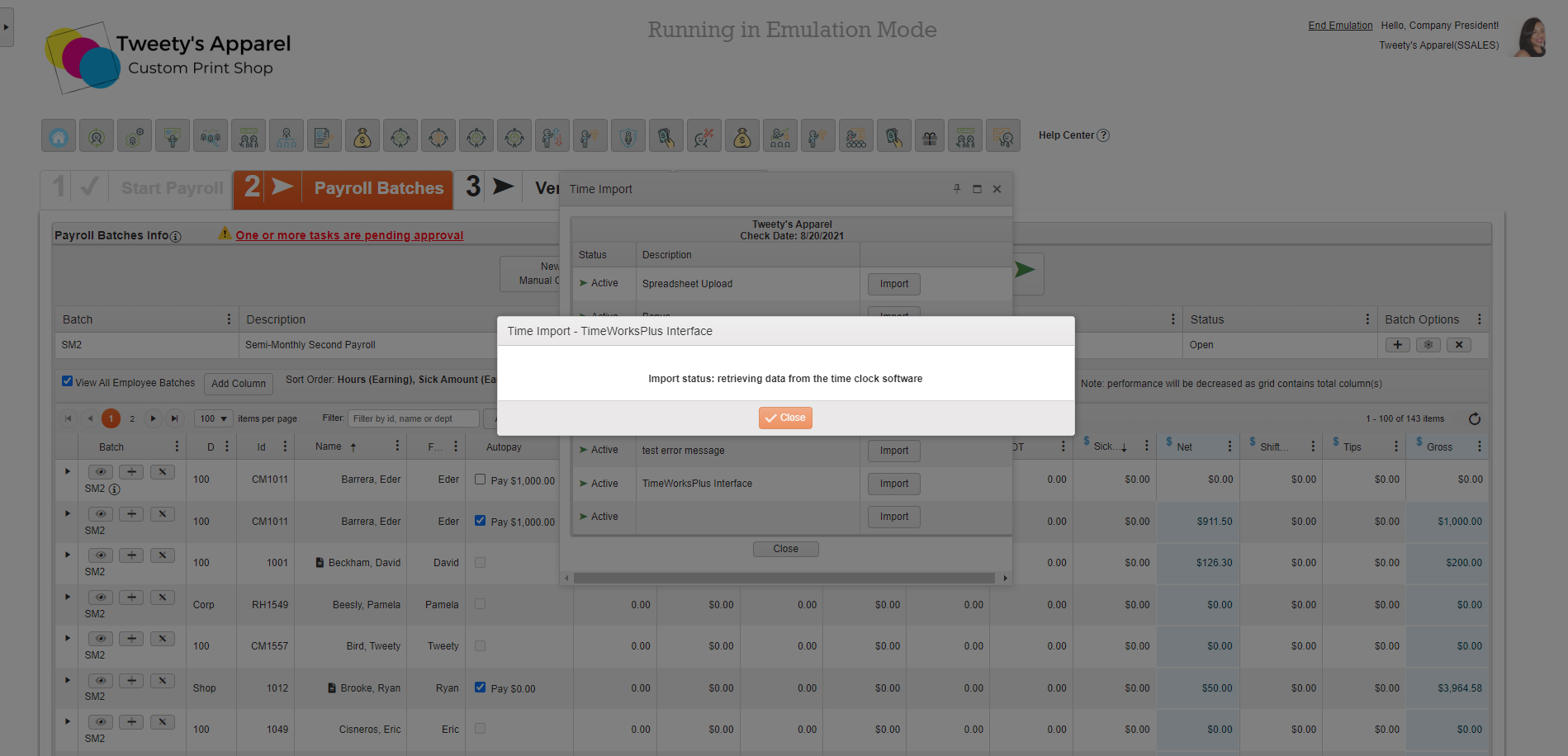
Once your import has finished, you will receive an Import Status: Done message indicating that the system imported your timecard data successfully with no errors.
Top Tip: As a best practice, we recommend always comparing your import totals to the Payroll Summary Reconciliation report in the TimeClock Supervisor module to ensure your timecard data matches the import.
Import Hours Using Custom Time Import Mapping
If you have set up a custom time import mapping, you can also import your timekeeping hours from a spreadsheet into payroll.
To do so, you'll follow the steps above to Start Payroll, then click Time Import and select Import next to the mapping option you would like to import.
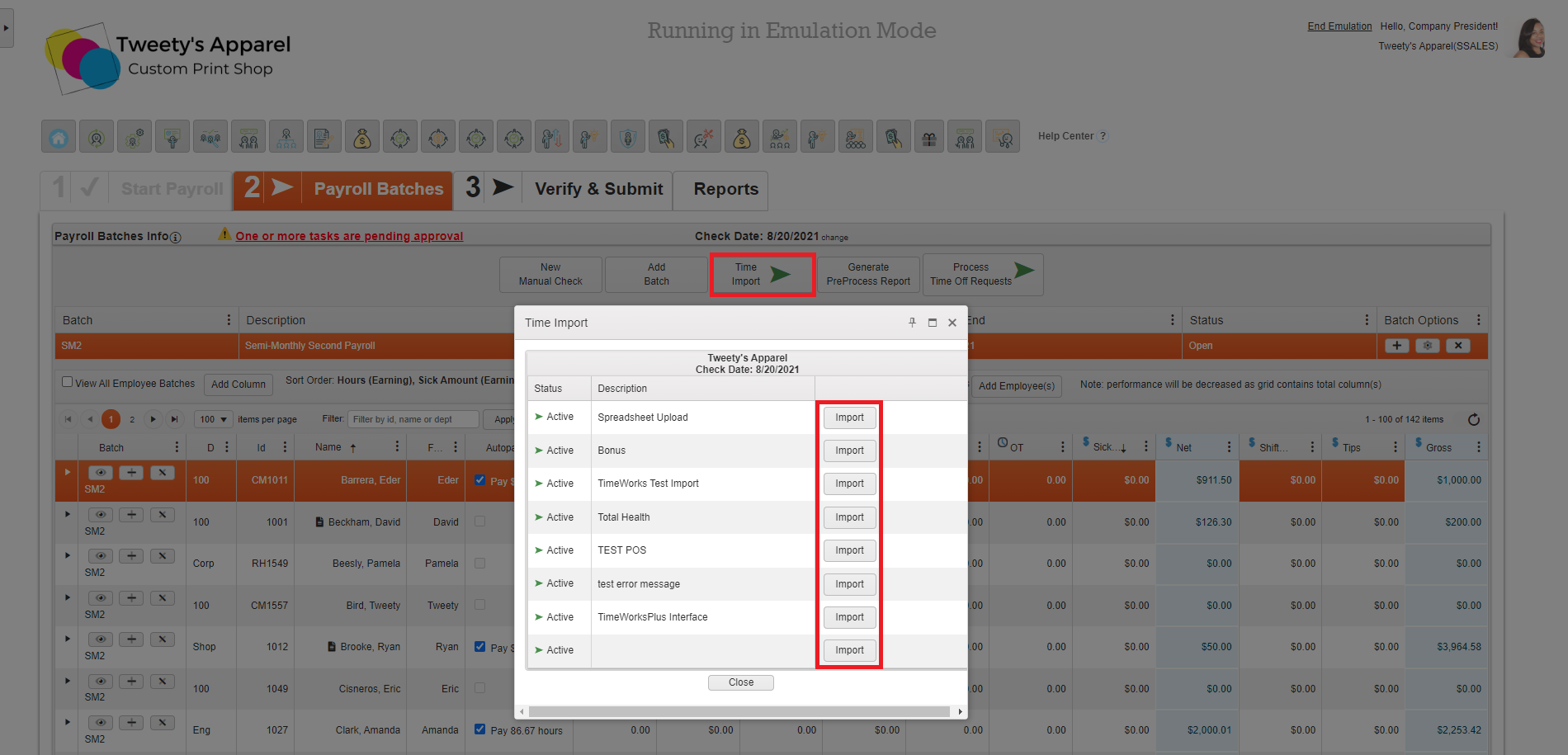
These options correspond to your Time Import Mapping Configuration under HRIS Administration > Payroll And Setup > Time Import Configuration.
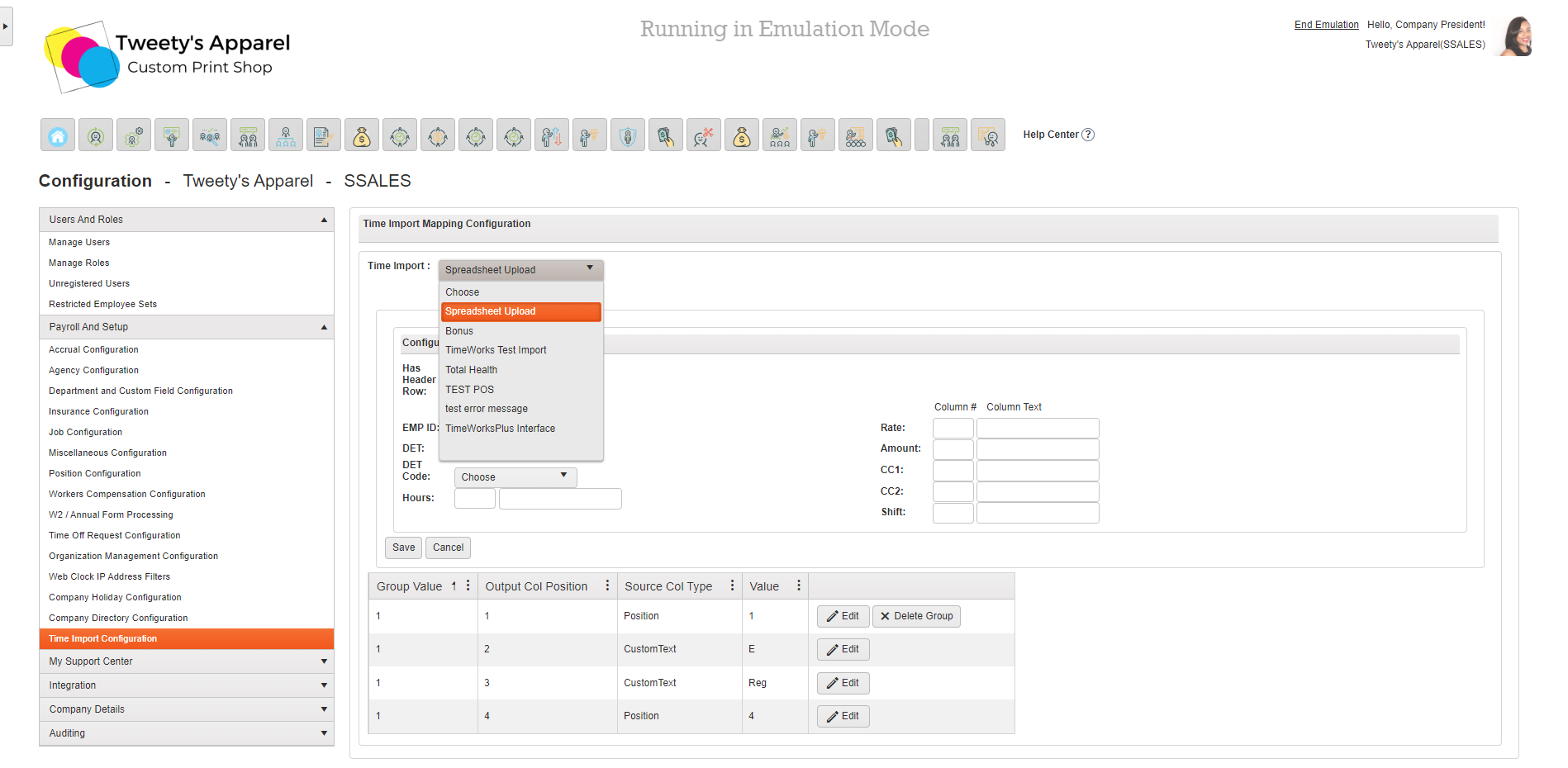
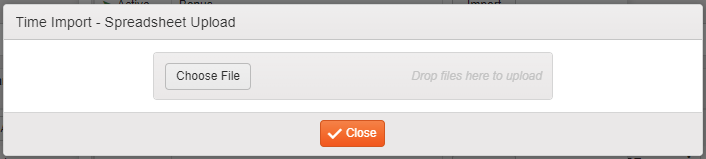
Selecting Import next to one of these custom time import mappings will open a dialogue box for you to select the file you would like to import.
Comments
0 comments
Please sign in to leave a comment.