
In your HRIS Administrator Portal, you have the ability to void checks that have been issued in the system. This will void the check and place the void in a VM Batch in the next payroll you process. Reversing entries for voided checks will not show until the void officially processes with payroll.
Why Void A Check?
There are many reasons you may need to void a check. Some of the most common situations we see where voided checks are needed include:
- An employee lost their check (in this case, you should also issue a Stop Payment from your bank for that check number).
- If a check was made incorrectly and needs to be voided and reissued correctly.
- If a check was not supposed to be made at all and needs to be voided out of records.
- If direct deposit was rejected (in this case, you should void the check and reissue as a Manual Check to process with your next payroll).
Step-By-Step Instructions
To begin, launch the Employee Management module from your portal's home screen.

Then, select the employee from your Employee list or search for them by Name, ID, or SSN.

Once selected, go to the employee's Paycheck > Paycheck History.

From here, click the Gear icon next to the check you would like to void and select Void.
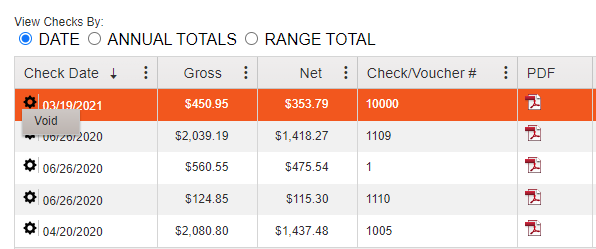
Then, select Yes to confirm.
Top Tip: If the paycheck you are voiding is from a prior quarter, this action will generally require an amendment to your payroll tax returns to avoid a tax notice. If you find yourself in a situation where you need to void a check from a prior quarter, please contact our Support team before voiding the check to discuss your options!
Once voided, you will receive a Void Check - Success message that your check has been successfully voided. Note that the check will not show as voided in the system until you process the Void in its VM Batch with your next payroll!
Comments
0 comments
Please sign in to leave a comment.