
Quick Links are a quick and easy way to link to documents and commonly used websites in your HRIS portal. However, chances are that certain roles and departments in your organization may need access to information that other roles and departments do not.
In these cases, it can be helpful to create and configure Quick Links by role.
Step-By-Step Instructions
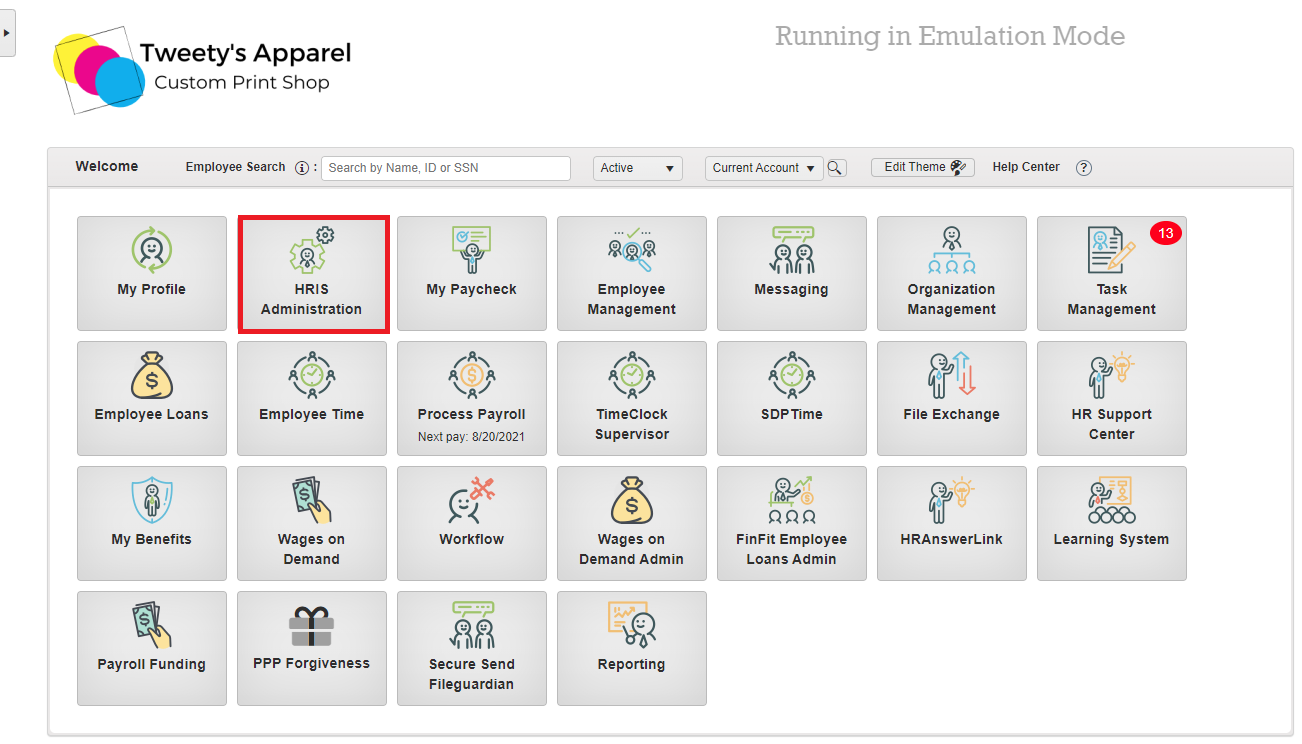
To begin, launch the HRIS Administration module from your portal dashboard.
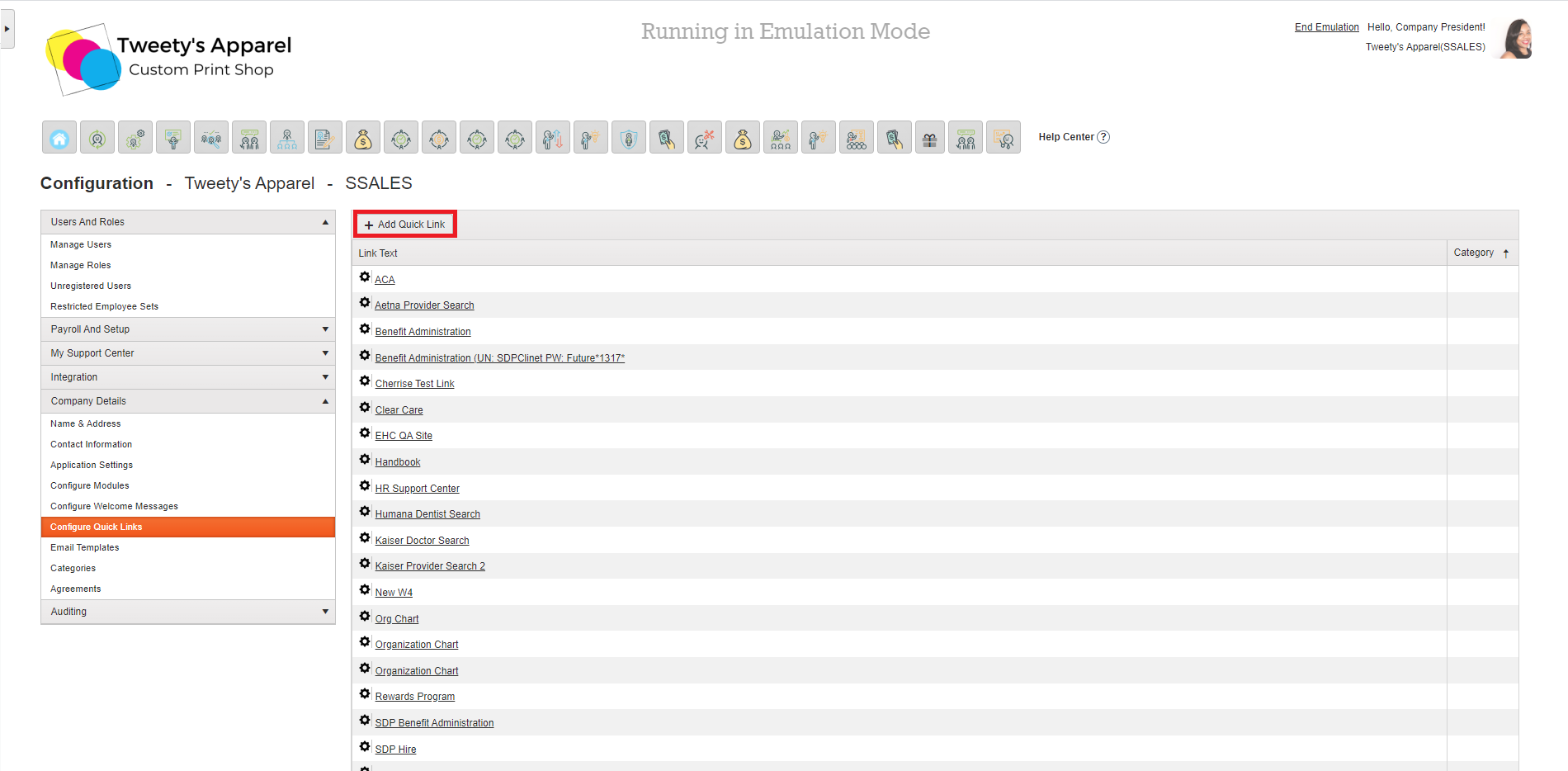
Then, select Company Details > Configure Quick Links and press +Add Quick Link.
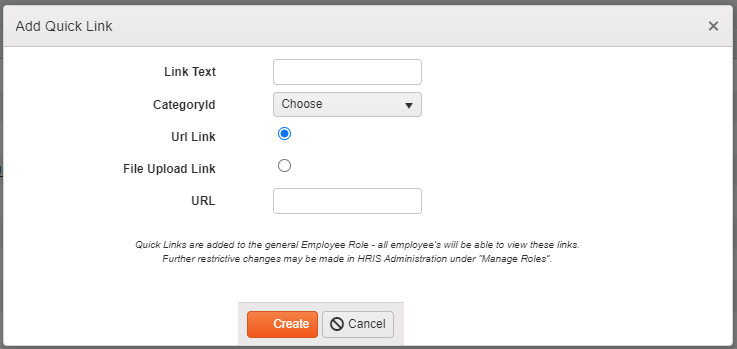
This will open the Add Quick Link dialogue box for you to enter the information for your Quick Link. Then, click Create.
Top Tip: We've seen clients create Quick Links for Employee Handbooks, CRMs, industry websites, purchasing platforms, and more. The sky's the limit!
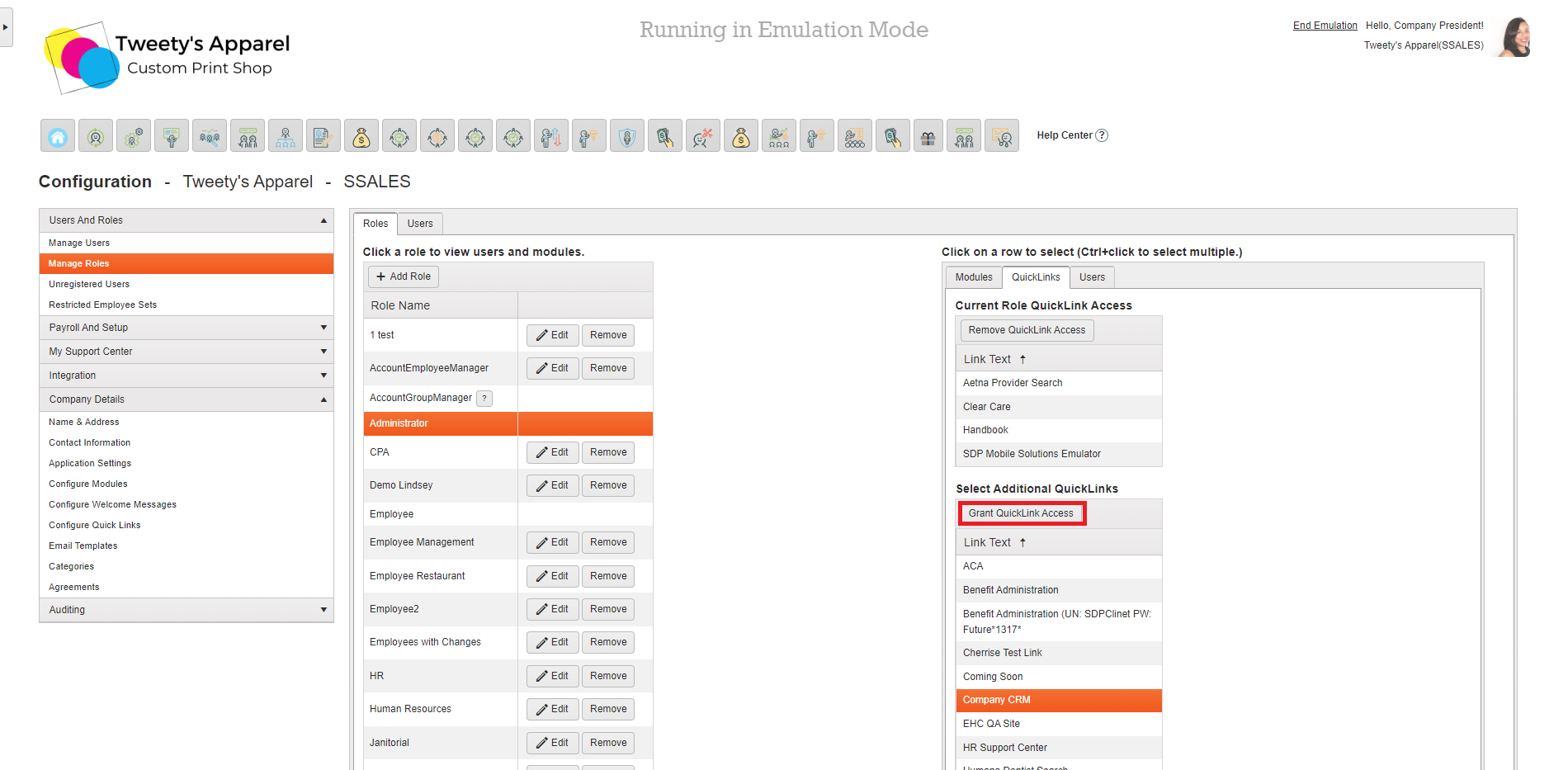
Once your Quick Link is created, click on Manage Roles from the left-side menu under Users And Roles. Then, select the role from the Click a role to view users and modules table you would like to add the Quick Link to and select on the Quick Link tab in the far-right table.
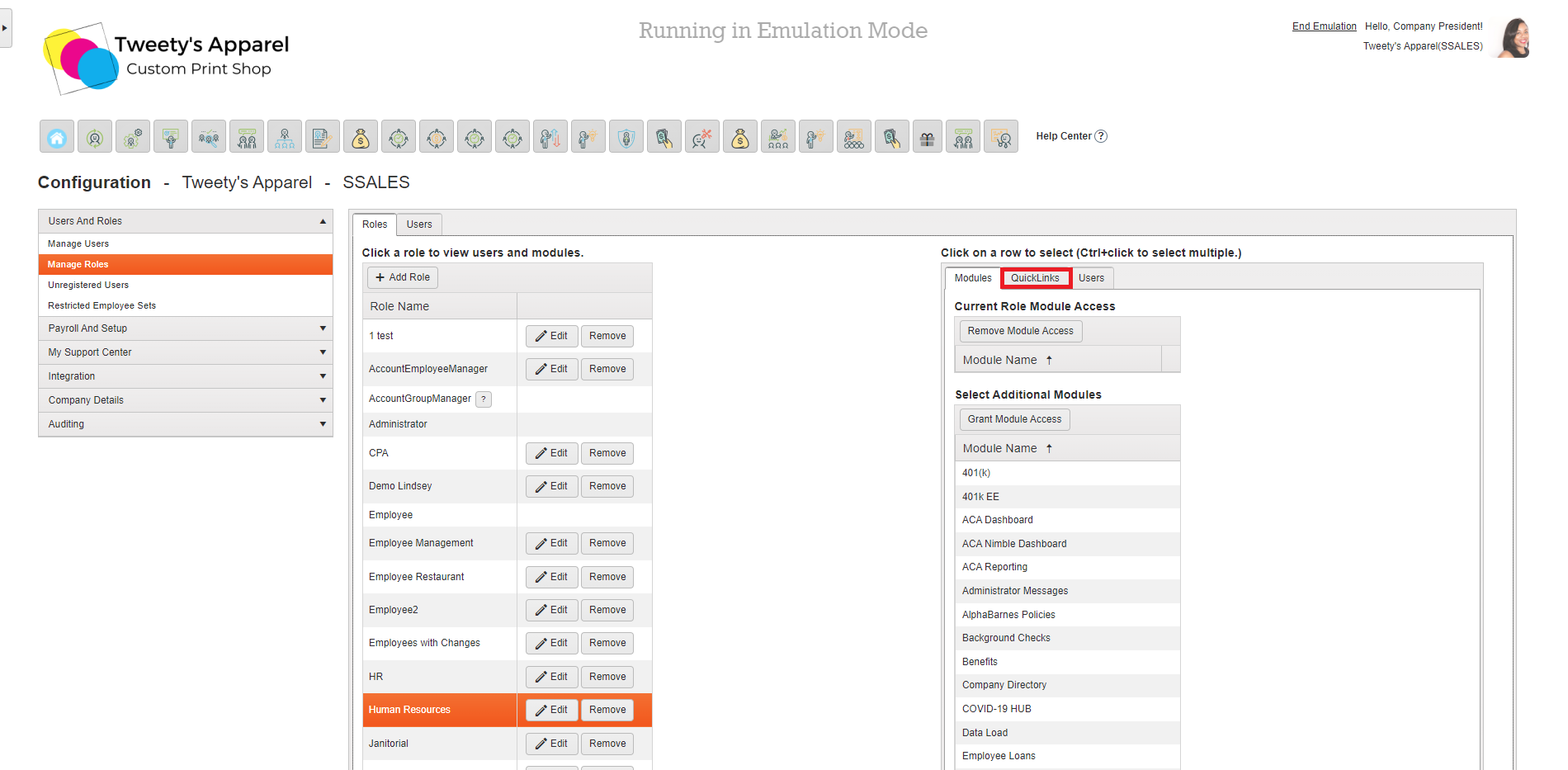
This will bring up a list of the role's current Quick Link access and all other company Quick Links that you can add to the role. Locate your new Quick Link from the Select Additional QuickLinks list, click on it, and select Grant QuickLink Access to add this Quick Link to the view for your selected role.
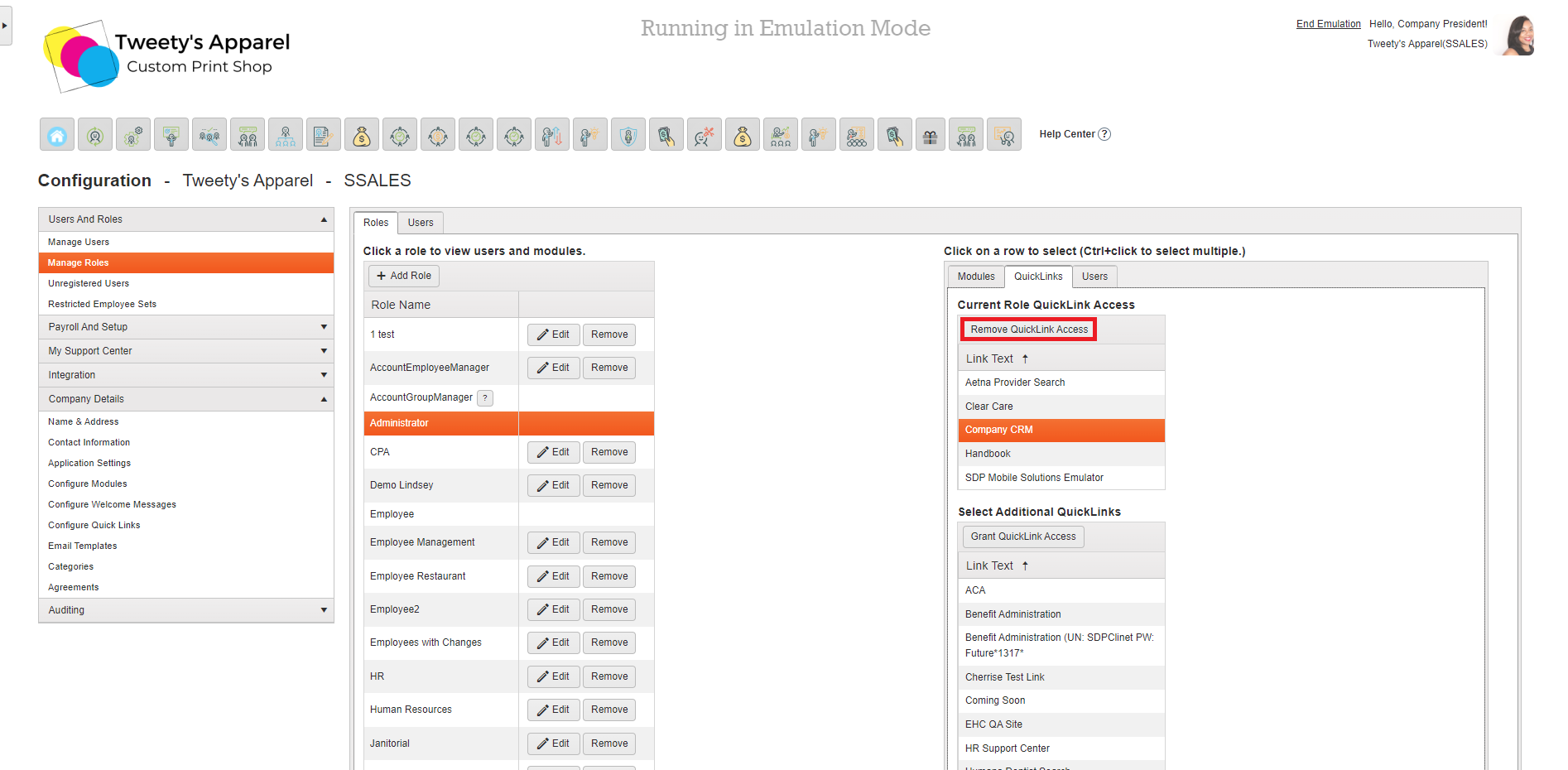
If you ever need to remove Quick Link access from a role, you would similarly select the Quick Link from the Current Role QuickLink Access table and click Remove QuickLink Access.
Top Tip: Keep in mind that a user's access is based on a combination of all of their Roles' access. So if you remove a Quick Link from your Employee role but it is still granted for the Administrator role, any users with both the Employee and Administrator roles will still have access to the Quick Link or Module.
Comments
0 comments
Please sign in to leave a comment.