
Once your batches and payroll grid are properly set up, it's time to process payroll! There are several methods to do this, depending on your situation:
- Enter directly on the Pay Grid
- Enter from the collapsible Payment Details menu
- Enter from the Check Details pop-up
- Enter via Time Import
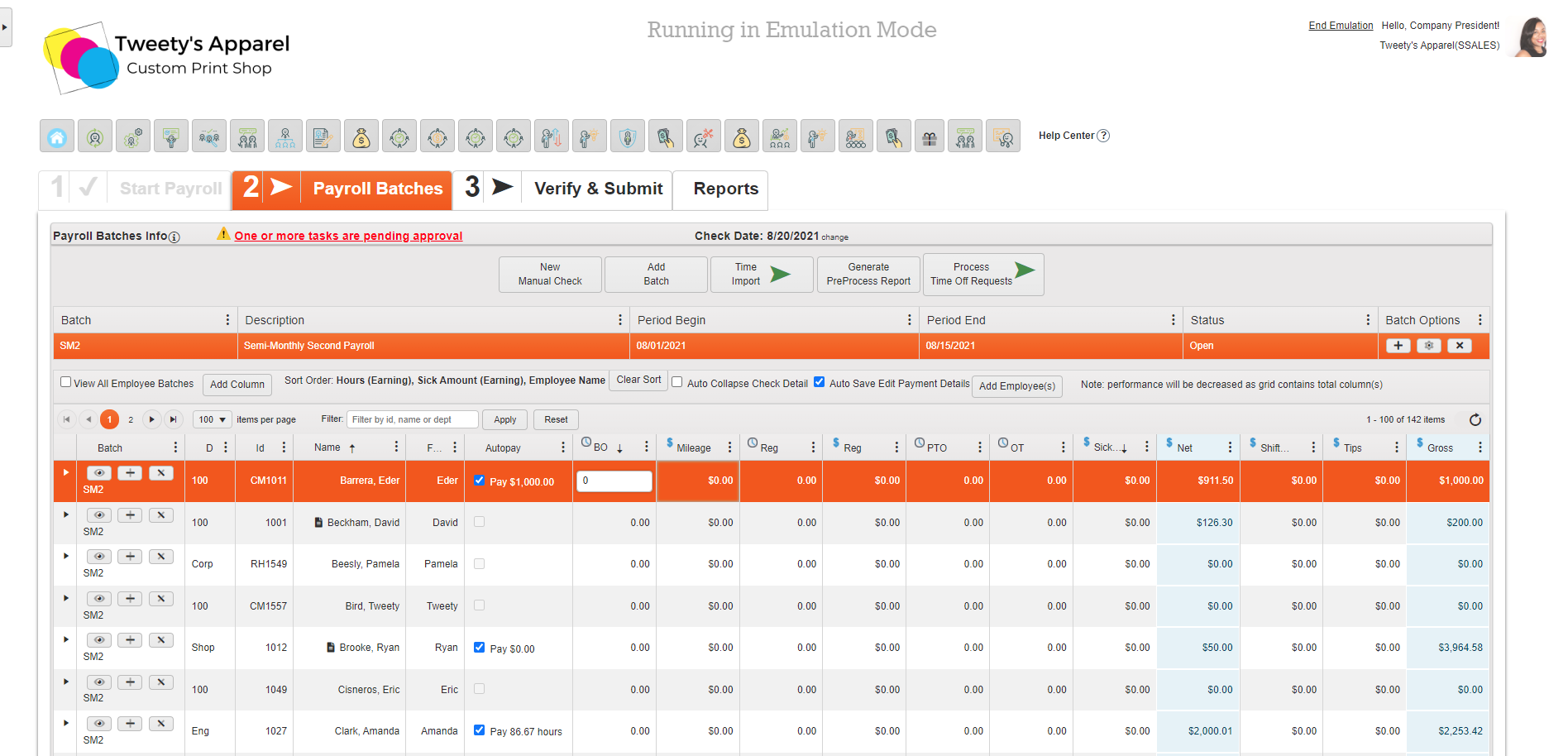
Enter Directly On The Pay Grid
Great For: Businesses who want to quickly key in payroll for employees if they have set up their pay grid to include all of the columns needed and employees are sorted in the order needed.
How To: Enter payroll directly from the pay grid by clicking into any field. Press the Tab key on your keyboard to quickly move from field to field.
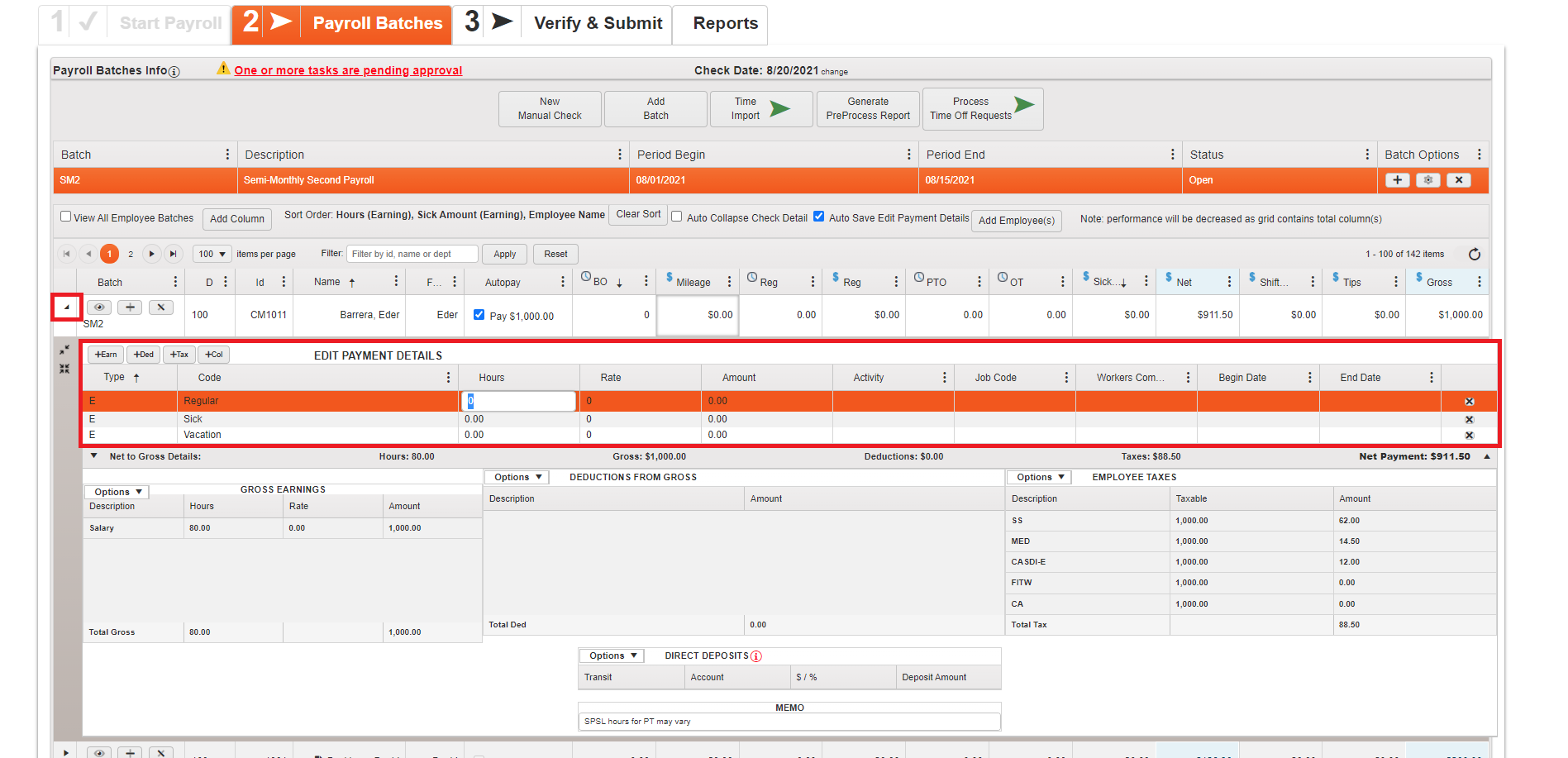
Enter From Collapsible Menu
Great For: Spot-checking specific employees or if only a few checks have irregular Deduction, Earning, or Tax (DET) codes that need to be entered.
How To: Select the Arrow icon next to an employee to view their check details and enter payroll in the Edit Payment Details section.
Top Tip: Functionality in this section (adding/removing DET codes, overriding system defaults, etc.) is similar to Manual Checks.
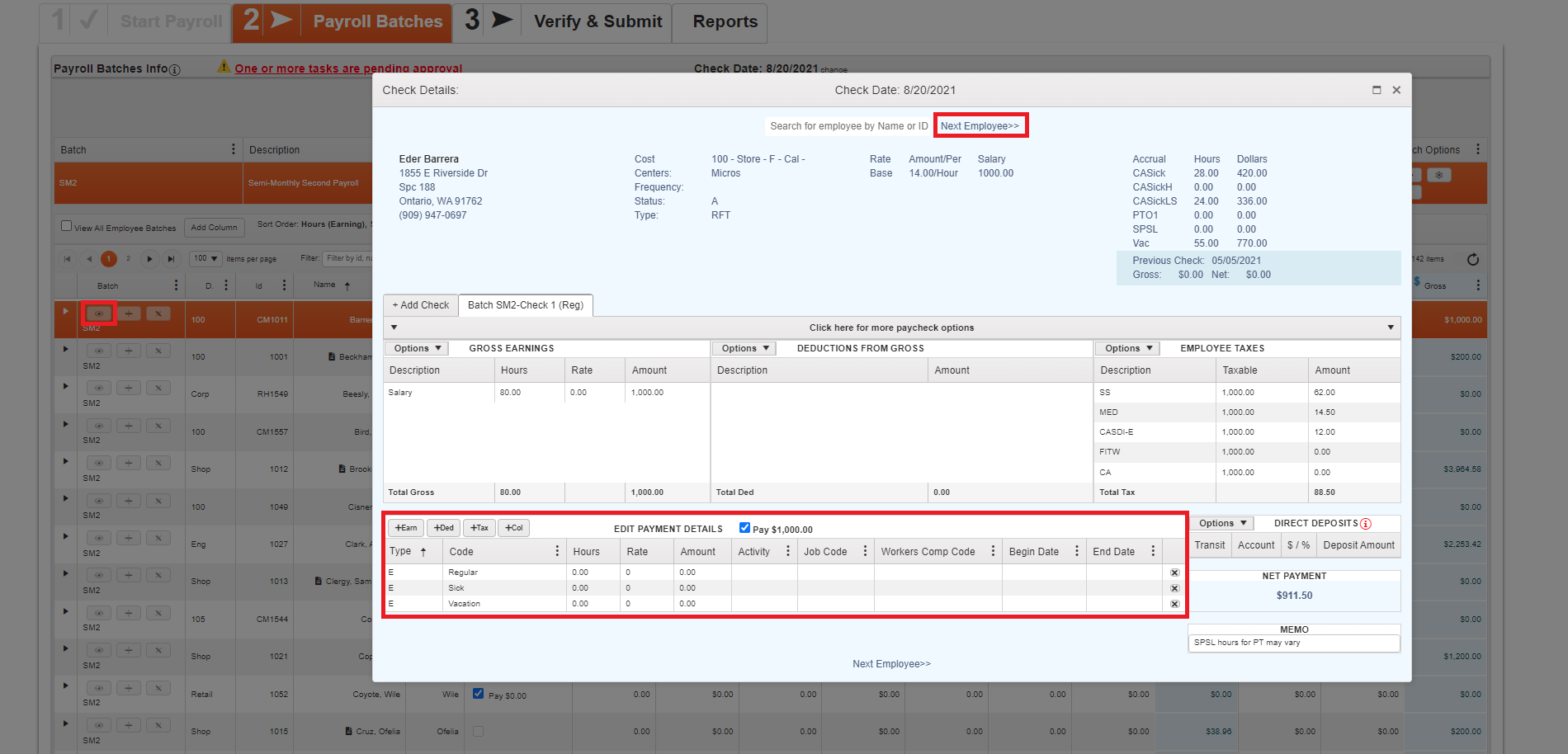
Enter From Check Details Pop-Up
Great For: Businesses with complex payroll entries for each employee. This method is similar to the above with the added feature of a Next Employee button and Search Bar to more easily navigate between employees.
How To: Press the Eye Icon next to an employee to open a pop-up of their Check Details. Enter the employee's payroll information in the Edit Payment Details section.
Top Tip: Functionality in this section (adding/removing DET codes, overriding system defaults, etc.) is similar to Manual Checks.
Enter via Time Import
Great For: Businesses using our integrated timekeeping service or who have an Excel export file of their employee payroll information.
How To: Click the Time Import button and select Import next to the option you would like to import.
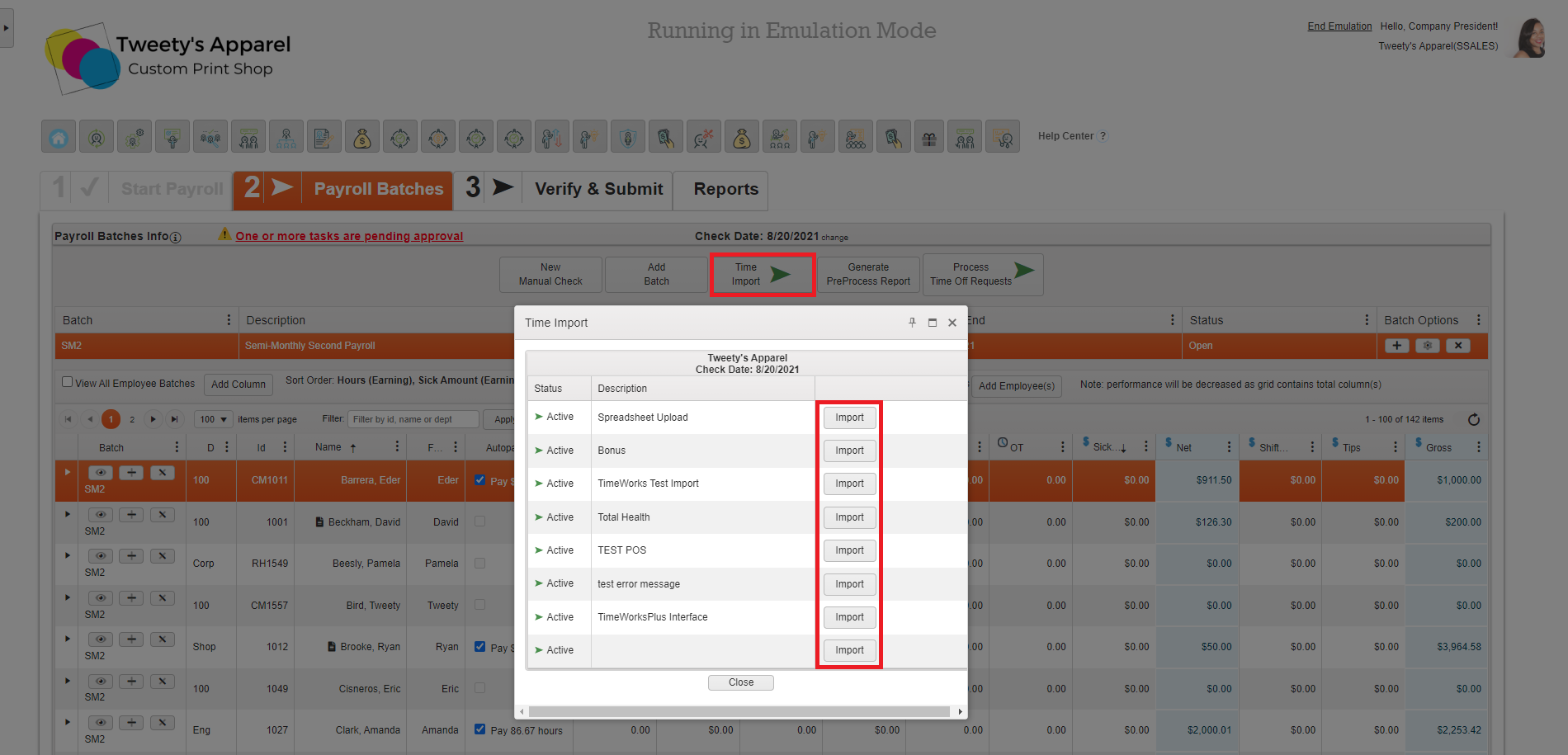
These options correspond to your Time Import Mapping Configuration under HRIS Administration > Payroll And Setup > Time Import Configuration.
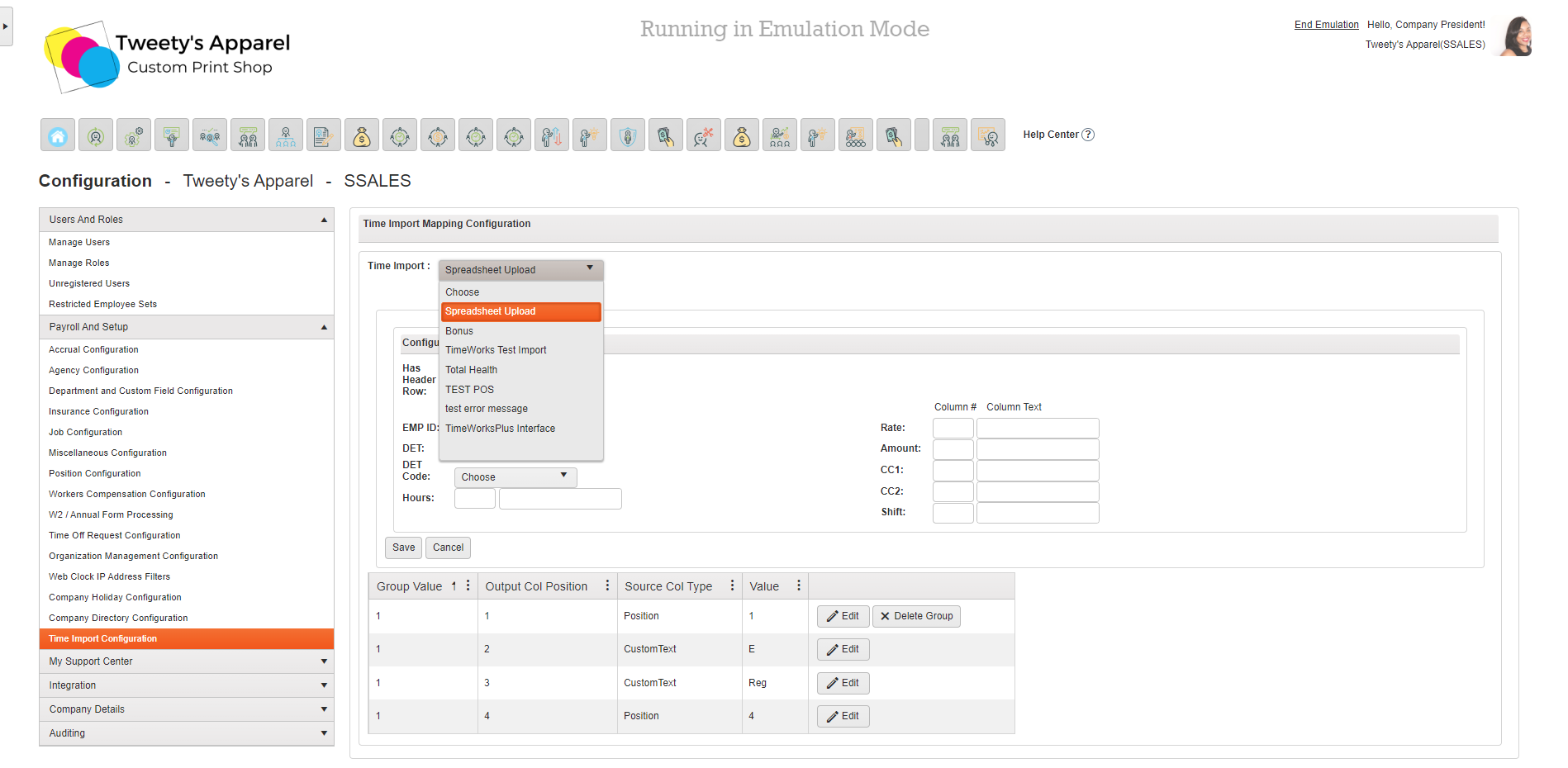
If you are using our integrated timekeeping service, we will automatically preload your account with the TimeWorks Plus Interface import. Selecting Import next to this option will automatically retrieve your timekeeping data from the timekeeping system.
Top Tip: You must Finalize your time card data before importing it using the TimeWorks Plus Interface import. You can find steps to do so here.
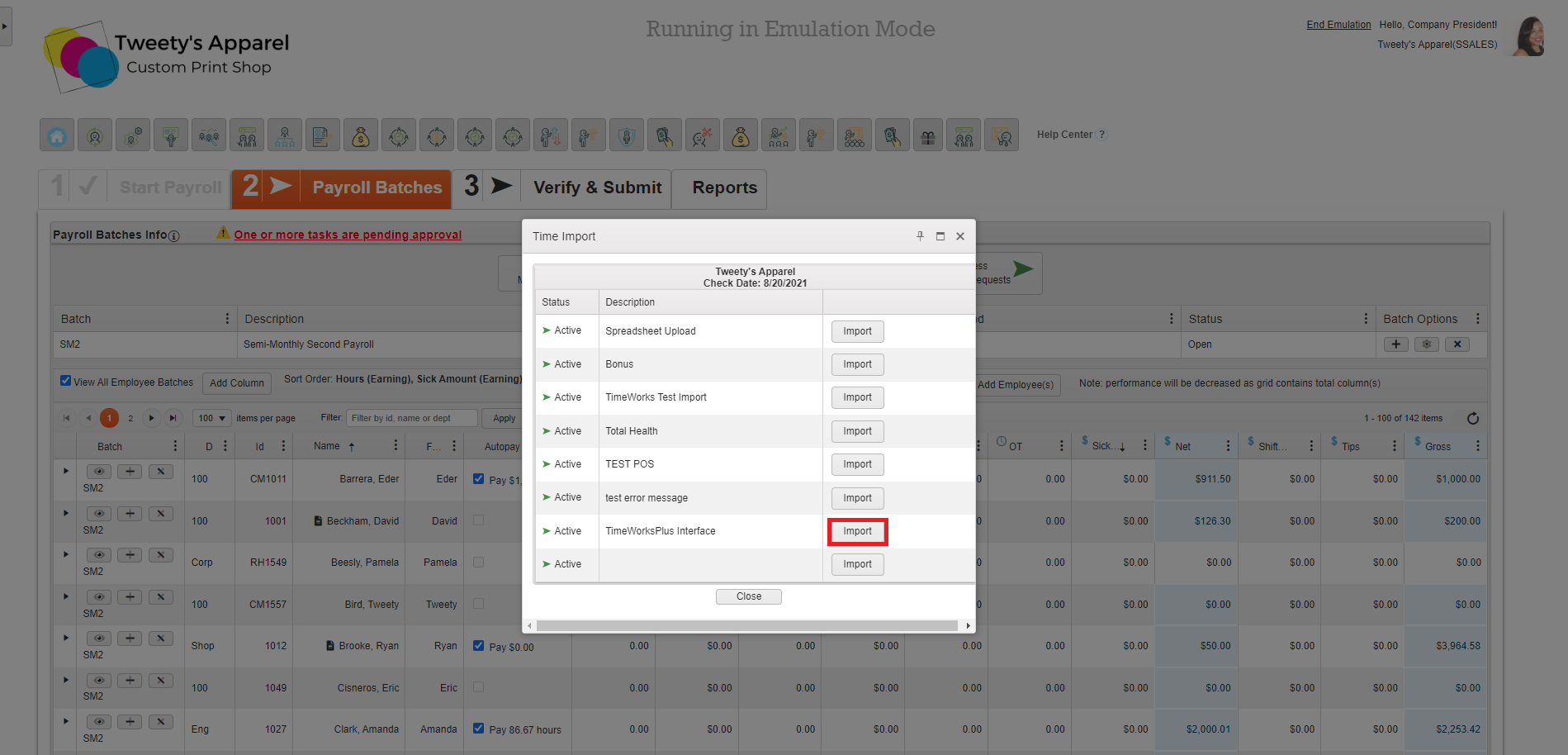
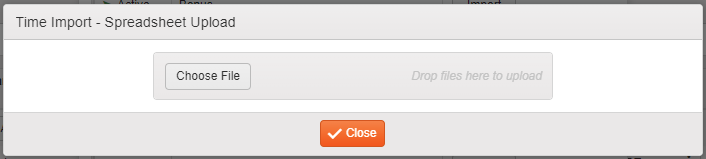
Alternatively, you can create your own custom time import mappings to upload your own spreadsheets into payroll. Selecting Import next to one of these custom time import mappings will open a dialogue box for you to select the file you would like to import.
Comments
0 comments
Please sign in to leave a comment.